Schema Generator
What this is for, in one sentence: Schema Generator reads one page, works out what structured data it is still missing, and writes the JSON-LD to close the gap, ready to copy into the page or hand to a developer.
When to come here:
- When a page has no structured data at all, or you’re not sure whether what it has is enough
- After Entity Audit flags a missing schema block, to actually produce the markup it’s asking for
- When a developer needs a ready-to-paste
<script type="application/ld+json">block rather than a description of what one should contain
Marcus Tan runs NorthStar Digital as an agency, and this is where he points the tool at the firm’s own homepage to see what Google and AI engines can already read there, and what a little more markup would add.
Business profiles only. Schema Generator is available to profiles set up as Business size — NorthStar Digital is the only demo profile of that size. Profiles set up as Micro SME don’t get the item in the sidebar at all, so its absence there is the profile type, not a fault. Only an owner or a member can open it at all: a viewer who reaches the URL directly is redirected away, not shown a locked screen.
Pointing it at a page
Section titled “Pointing it at a page”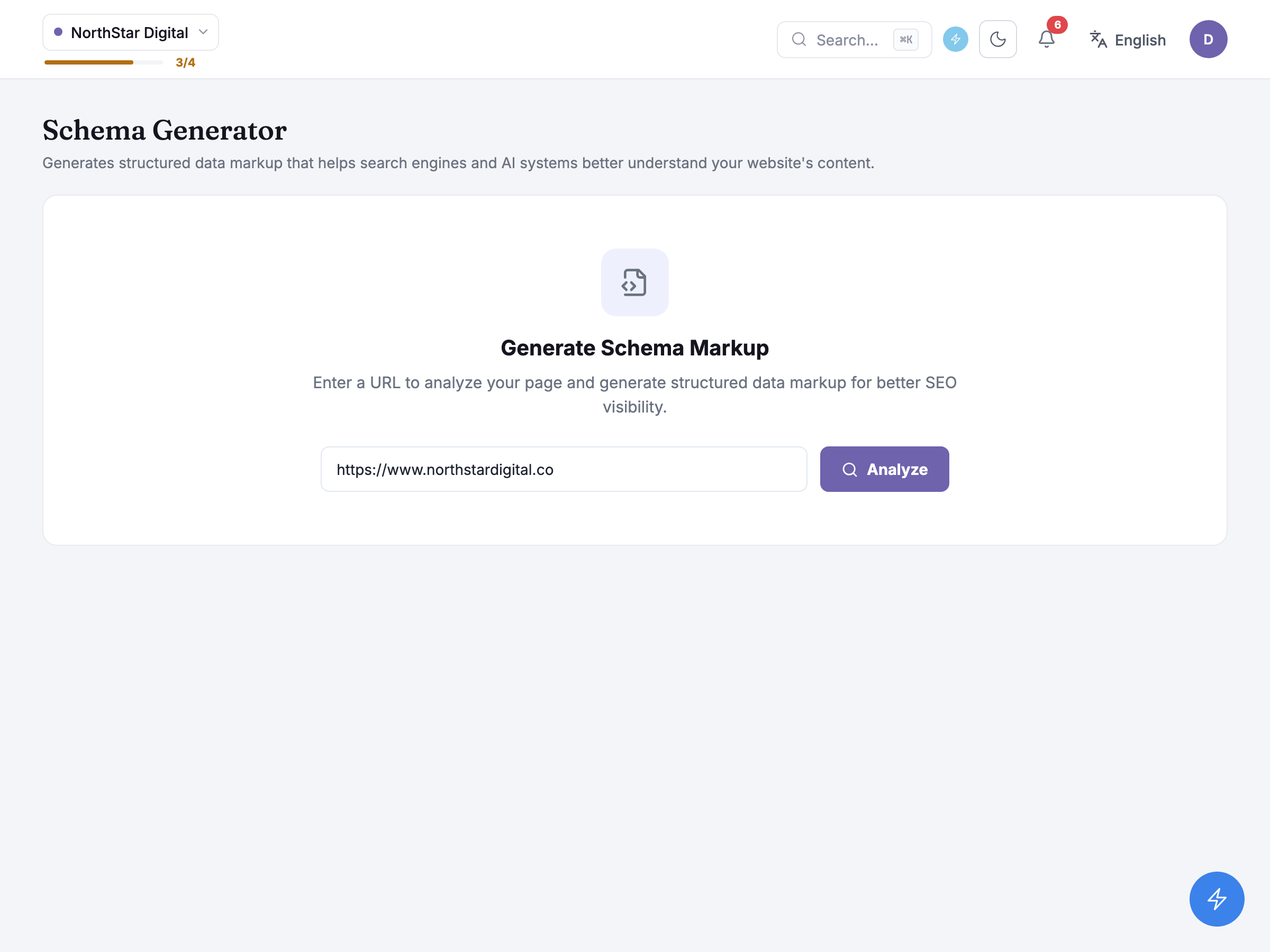
The subtitle states what the tool actually produces: it Generates structured data markup that helps search engines and AI systems better understand your website’s content. — this is one page at a time, not a site-wide crawl. The card underneath, headed Generate Schema Markup, explains the same idea in one line: Enter a URL to analyze your page and generate structured data markup for better SEO visibility.
The URL field comes prefilled with your business profile’s own website once that loads, or with whatever URL you arrived from — following a link out of an Opportunity card, say, seeds this same field automatically. It stays a plain text field, not a page picker, so you can point it at any page you can reach, not only ones the crawl already knows about. NorthStar Digital’s demo run points it at https://www.northstardigital.co, its own homepage.
Analyze fetches that URL and works out two things at once: what type of page it is, and what structured data is already sitting on it. There’s no job to watch and nothing to poll for — the button waits on one request and the result replaces the form when it’s ready, usually somewhere between a few seconds and under a minute for an ordinary page. A short “scanning the page” state fills that wait rather than a blank screen.
Choosing which schemas to generate
Section titled “Choosing which schemas to generate”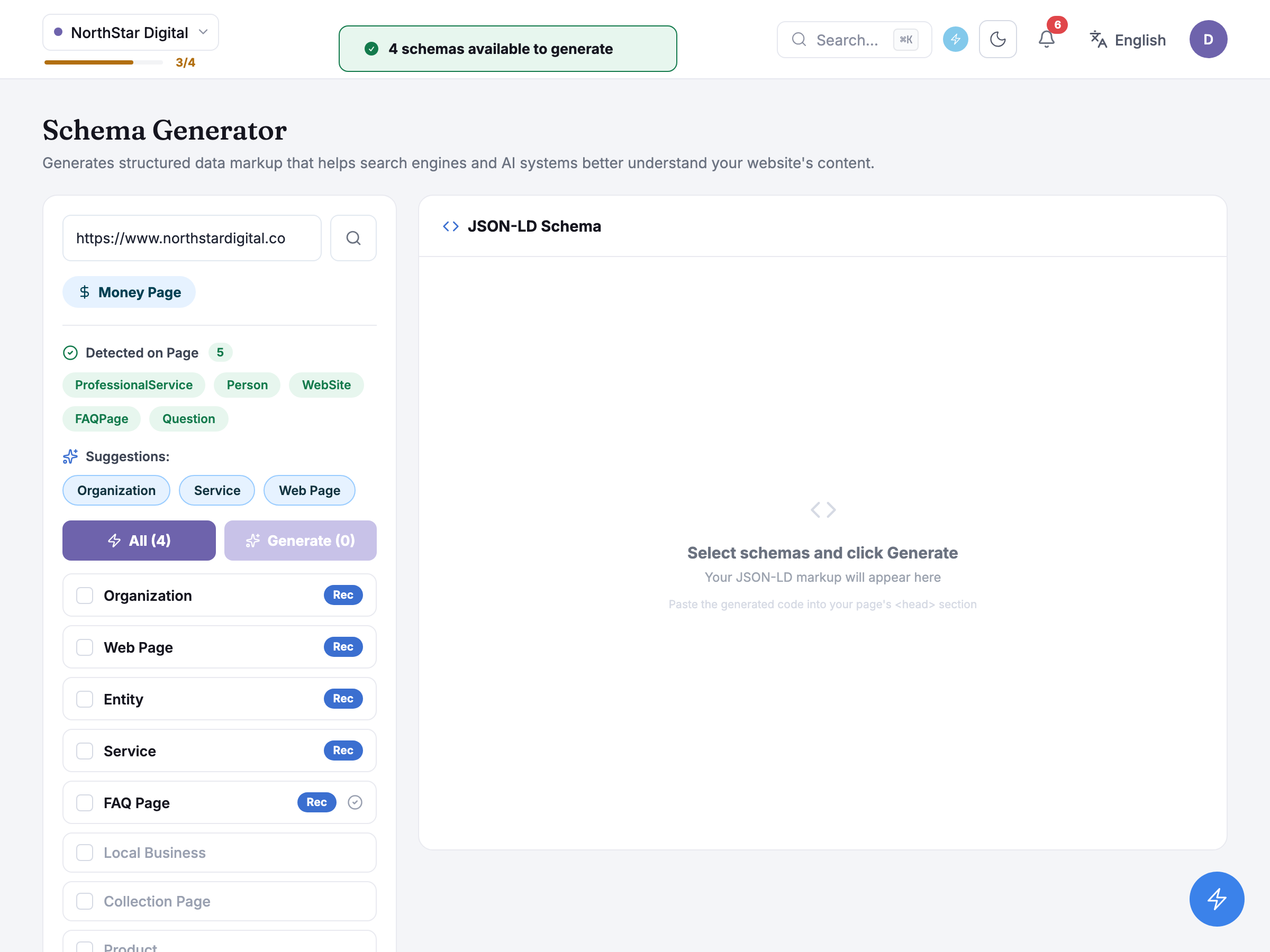
Once analysis finishes, the layout splits in two. The left side opens with a page-type badge — a money page, an informational page, a product page or a category page, depending what the analysis found; NorthStar Digital’s homepage came back as a money page. That classification matters beyond the label: it decides which schema types from the tool’s library are even shown as candidates, and only a handful apply to any one page type — a money page and a blog article don’t need the same structured data.
Underneath the badge sit two lists that answer different questions. Detected on Page names the schema types the page already carries — the demo homepage already had five: ProfessionalService, Person, WebSite, FAQPage and Question. A separate suggestions list names types the tool thinks are worth adding on top of what’s there — three for this page: Organization, Service and Web Page. The full checklist of candidate types goes further than either list: it includes everything generatable for a money page, which for this homepage came to four types with enough real content to work from (Organization, Web Page, Entity and Service), alongside the rest shown but greyed out — either because that type already exists on the page, or because the page doesn’t carry enough of the right content to generate it credibly. Hovering a greyed-out card explains which of the two reasons applies.
Ticking types and pressing Generate — or generating every available type at once — is what actually produces markup; nothing is written until you do. Selecting types costs nothing and doesn’t touch the page itself, so it’s safe to tick a few, see what comes back, and generate again with a different set.
Honest guidance — this is a live read of the page, not a saved crawl. Analysing and generating both fetch the URL again each time and run it past an AI model there and then; nothing about a previous run is cached or reused. Run it again on a page you’ve since edited and you’ll get a fresh read, not a stale one.
Reading the generated markup
Section titled “Reading the generated markup”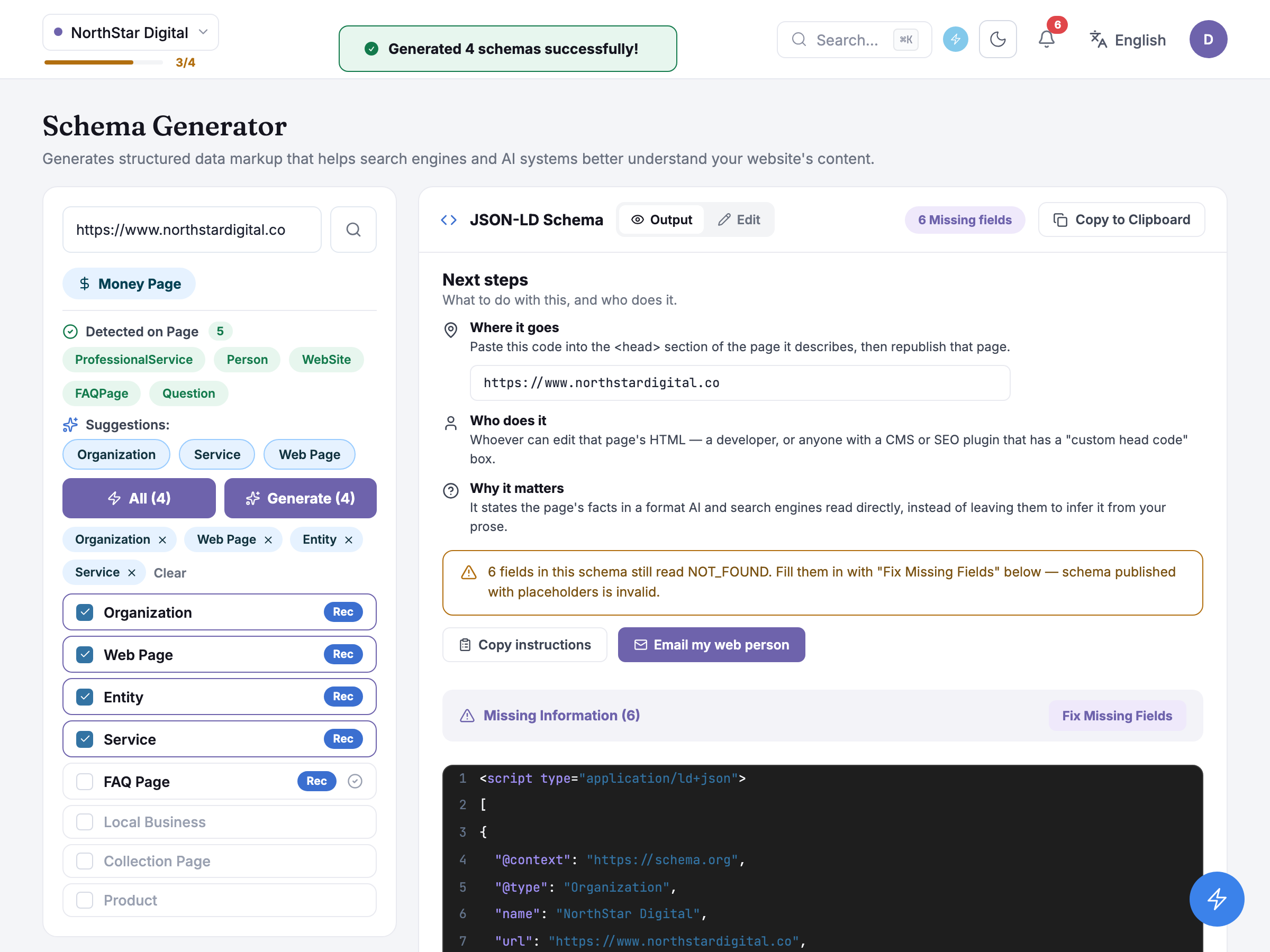
Generated markup lands in a panel with two tabs: a read-only, syntax-highlighted view of the JSON-LD, and an editable one where you can hand-adjust the text before you copy it — there’s no separate field-by-field editor outside the one described below, so the plain text is the only way to change something the tool didn’t get quite right.
Whatever it couldn’t fill from the page’s own content, or from your business profile, comes back marked with a placeholder rather than an invented value — the model is explicitly told never to guess. NorthStar Digital’s Organization block names the business correctly but left six fields carrying that placeholder, things like a missing contact detail or a founding date nowhere on the page. A banner counts them and offers to fix them: filling each one in yourself, or trying an AI auto-fill pass that searches for a plausible value for each blank rather than leaving you to look it up. Applying either only changes the text on screen — nothing is saved anywhere until you copy it out.
Copying is deliberately blocked while any placeholder remains, on the reasoning that a schema published with a placeholder still in it is worse than no schema at all. Once every field is filled, copying puts just the script block on your clipboard, ready to paste into the page’s <head>. A separate hand-off card writes the instructions to go with it — an email explaining that the change doesn’t alter how the page looks, addressed to whoever can actually publish it — but keeps the markup itself off that email, since it’s too large to include usefully; you copy the code separately and send both together.
Honest guidance — there is no publish button and no saved history here. This tool copies and hands off; it never writes to your site directly, and generating again for the same or a different page simply replaces what’s on screen. Nothing about a past run is kept for you to come back to, so copy out anything you want to keep before you navigate away.
Common questions
Section titled “Common questions”Why does the schema checklist change when I put in a different page? The checklist follows the page type the analysis detects — a money page and a product page are offered different schema types, because they need different structured data. Re-running Analyze on a new URL can change which types even appear as options.
Can I trust every field the tool fills in? Only the ones it filled from something real on the page or your business profile — anything it couldn’t find honestly comes back as a placeholder rather than a guess, and Copy to Clipboard stays blocked until you’ve dealt with every one.
Does generating schema change anything on my actual website? No. Everything this tool produces stays inside the dashboard until you paste it in yourself or hand it to whoever publishes your pages — there’s no direct-publish or CMS connection here.
What to do next
Section titled “What to do next”- Entity Audit — the sibling check for whether a fix belongs at the whole-site or the single-page level.
- Site Audit — confirms whether AI crawlers can technically read the page you just marked up.
- Content Optimizer — for the page’s actual wording, once its structured data is settled.
- Opportunities — often the place a schema gap gets flagged before you bring the page here.