Content Generator
What this is for, in one sentence: Content Generator turns a topic into a finished, AEO-ready article — either as one instant draft or as a pipeline you approve stage by stage — and saves the result straight into Content Studio.
When to come here:
- When you need a brand-new article, rather than an existing page to rewrite (that’s Content Optimizer)
- When a topic needs explaining in plain English for a non-specialist reader
- When you want to see and steer an article’s outline and research before it commits to a full draft
Marcus Tan writes new articles for NorthStar Digital and its clients from this screen. He reaches for Instant Mode when a topic is straightforward, and switches to Step by Step when he wants to see the outline before the AI commits to a full draft.
Business profiles only, and an owner or member role. Content Generator is available to profiles set up as a Business — NorthStar Digital is the only demo profile of that size. Profiles set up as Micro SME don’t get the Content Generator item in the sidebar at all.
A viewer role doesn’t get in either, even by direct link: the route itself turns them back, not just the sidebar entry.
Describing the article you want
Section titled “Describing the article you want”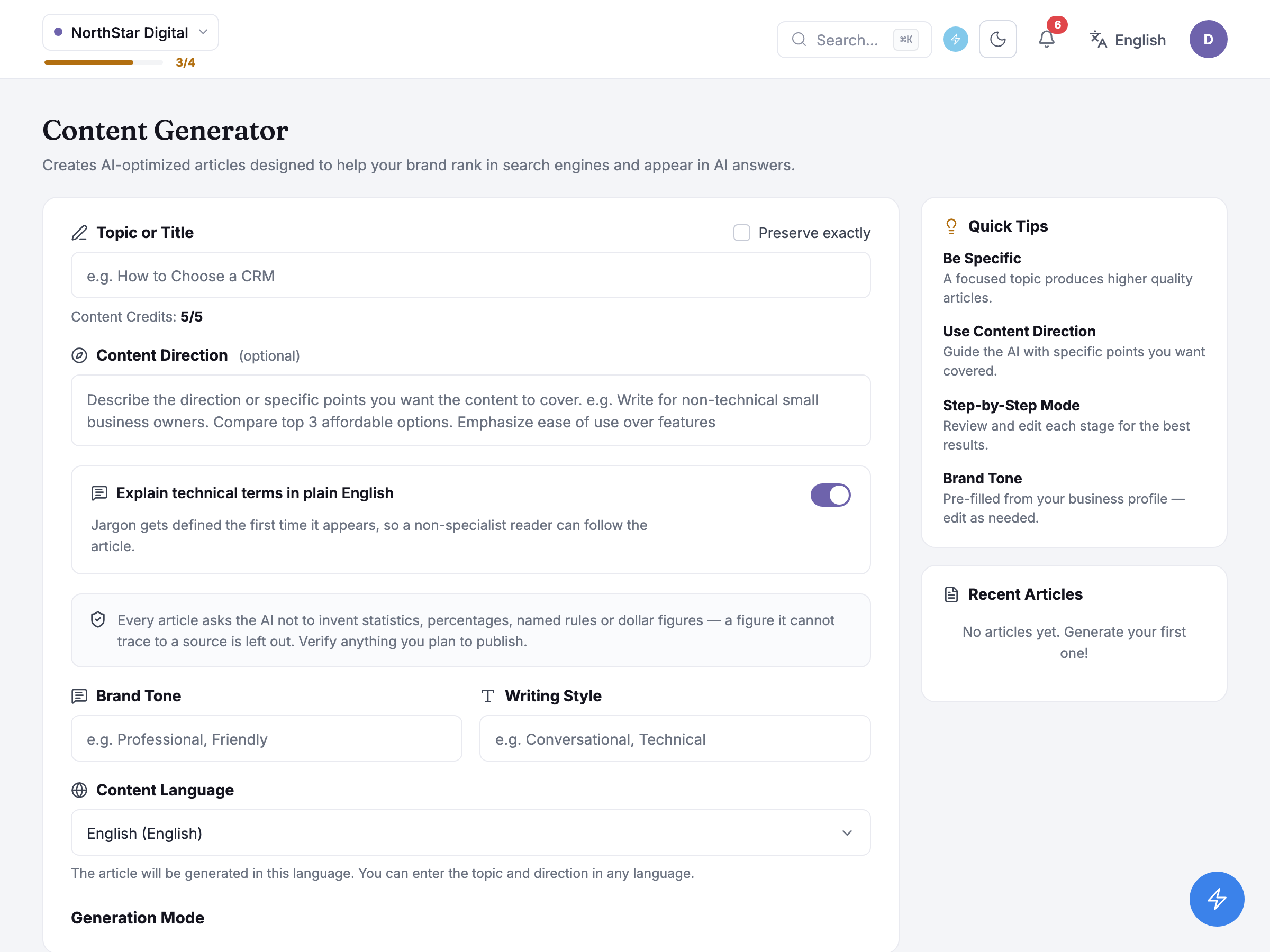 The form starts with Topic or Title, plus a Preserve exactly checkbox for when the exact wording you typed matters more than a polished rewrite. Below it, an optional Content Direction box lets you describe specific points the article should cover — write for non-technical readers, compare a set of options, whatever the brief calls for.
A toggle switches on plain-English explanations: Jargon gets defined the first time it appears, so a non-specialist reader can follow the article. Beneath it, a fixed note applies to every article regardless of that toggle: Every article asks the AI not to invent statistics, percentages, named rules or dollar figures — a figure it cannot trace to a source is left out. Verify anything you plan to publish. That instruction is built into the request the form sends, not just a promise printed on the page.
Brand Tone and Writing Style are pre-filled from the business profile and editable; Content Language picks which of 25 languages the article is written in — you can type the topic and direction in a different language from the one you want the article in.
Beside the form, Quick Tips repeats four pointers — Be Specific, Use Content Direction, Step-by-Step Mode and Brand Tone — and Recent Articles lists what you’ve already generated, each with its own status.
Choosing Instant or Step by Step
Section titled “Choosing Instant or Step by Step”Below the form, Generation Mode offers two cards, and the submit button beneath them changes to match whichever is selected. Instant Mode (Generate complete article directly) is described plainly: Skips the title, outline and research checkpoints — the finished draft is the first thing you review. Step by Step (Topic, outline, research, then article) runs the same pipeline but stops after each stage — Topic Understanding, then the Outline, then Research — showing you what it produced and waiting for you to approve before it moves on to the next one.
Both paths go through the same four stages underneath. Step by Step is simply the one that pauses and asks at each checkpoint; Instant Mode runs straight through to a finished draft.
Once you submit, Step by Step splits the screen: a sidebar names each pipeline stage, and the active one runs in the main panel with its own plain-language status — understanding the topic, drafting an outline, gathering research, then writing the draft. Each stage stops once it’s done and waits for your approval before the next one starts.
Instant Mode skips that sidebar and shows one loading screen instead, which sets the expectation honestly: “Instant mode still runs the full pipeline — it usually takes about 45–60 seconds.” Either way, you don’t have to sit and watch it: you can navigate away, and coming back to Content Generator picks the job back up automatically, wherever it got to.
Honest guidance — leaving the page doesn’t lose the job. The pipeline keeps running regardless of whether the tab stays open; returning to Content Generator resumes polling rather than starting the article over.
Reviewing the finished draft
Section titled “Reviewing the finished draft”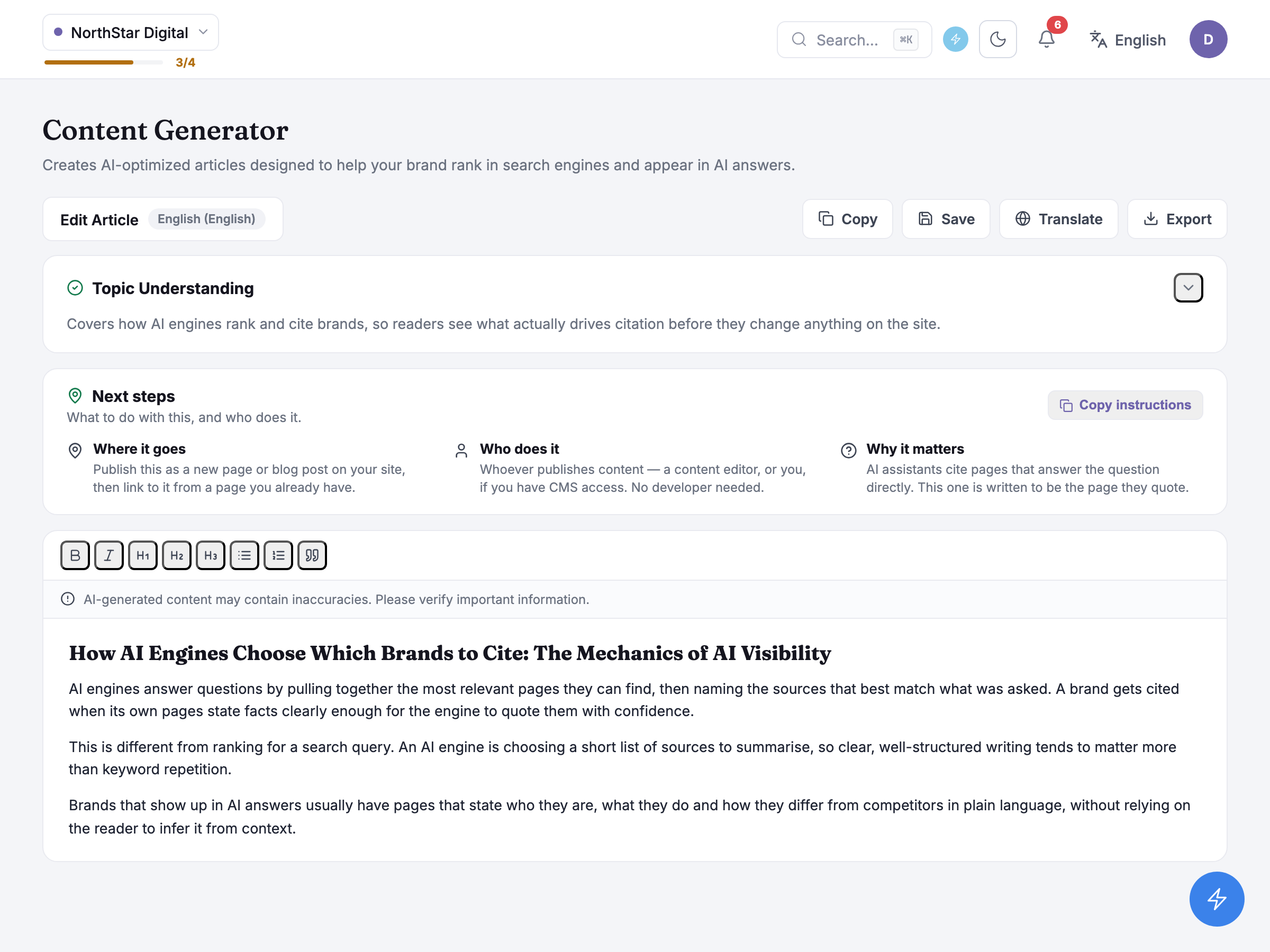 The finished draft opens in an editor with a small formatting toolbar (bold, italic, headings, lists, a quote block) and four actions above it: Copy, Save, Translate and Export. A Topic Understanding card above the draft summarises, in one sentence, what the AI understood the topic to be before it wrote anything — worth checking that it actually matches what you asked for. A disclaimer sits nearby too: AI-generated content may contain inaccuracies. Please verify important information.
Export expands into a choice of file formats — Word, Markdown, HTML or a PDF. The PDF option isn’t generated on a server: it opens your browser’s own print dialog and you save from there, the same as printing any other page.
Translate posts the draft through a translation pass and shows the result in a second tab; nothing is saved until you choose to save it, so closing the page or navigating away discards a translation you haven’t kept.
Before you publish anything, it’s worth checking for unsupported figures: the editor scans the finished draft for any statistic, percentage or number it can’t trace back to a source, lists each one with where it appears, and asks you to verify or remove it. That check sits on top of the no-invented-figures instruction from the topic form — a second look, not a replacement for reading the draft yourself.
A Next steps card follows the draft, spelling out What to do with this, and who does it — for this article, that covers where it goes, who does it and why it matters, plus a Copy instructions button for handing the plan to whoever publishes it.
Saving here doesn’t add a step: a Content Generator article saves itself as it progresses, and once it’s finished it shows up in Content Studio as a generated item, ready to reopen, export or translate again from there.
Common questions
Section titled “Common questions”Does Step by Step let me change the outline before the article gets written? Yes — each stage shows you what it produced and waits for you to approve it before moving on, so you can edit the outline or the research before the write stage starts.
What happens if I close the tab while an article is generating? Nothing is lost. The job keeps running, and reopening Content Generator picks the polling back up rather than starting over.
Can I get the article as a PDF? Yes, through Export — but the PDF comes from your browser’s own print dialog, not a file the server builds for you.
What to do next
Section titled “What to do next”- Content Studio — where every finished article ends up, alongside optimised pages.
- Content Optimizer — for rewriting a page you already have, rather than writing a new one.
- Schema Generator — structured data for the page once the article is published somewhere.