Ask Zicy
What this is for, in one sentence: Ask Zicy is the assistant built into Zicy: ask it in plain language what a number means, whether it is good, and what to do about it, and it answers from your own workspace data and the help centre.
One article for every screen in Zicy, grouped the way the sidebar groups them. Module reference
When to come here:
- The moment a metric raises a question you’d otherwise have to google, such as “is 24.3% share of voice good?”
- When you want a plain-English read of a period without assembling it yourself
- Any time you’re new to a module and would rather ask than read
- When you’d like to be shown where something lives, not just told
Sarah Lim doesn’t have an analyst, an agency, or an afternoon to decode dashboards. Ask Zicy is the difference between a tool that assumes expertise and one that supplies it: the question mark in her head gets typed into the panel, and the answer comes back in her data, not in generalities.
Key numbers and terms
Section titled “Key numbers and terms”Ask Zicy has no scores of its own. It quotes figures from the module that owns them, and it should tell you where each one came from: your screen, the help centre, or a lookup it made just now.
- On your screen: the figures visible on the page when you sent your message, along with the module, filters, date range and any record you have open. This is a snapshot, so a figure you scroll to later was not necessarily in it.
- Fetched just now: a live read of your account, used when the figure you asked about is not already on your screen. Seeing this month’s score on screen is not the same as seeing last month’s, so it fetches the other period.
- From the help centre: how a feature works or what a metric means, with the source named.
If it cannot make up a number from one of these three sources, it should not state one. A good sign is an answer that names where each figure came from. A bad sign is a precise-looking number with no source, which is worth checking against the module.
If a lookup fails, it should say it could not reach your data and that you can ask again. That is different from saying you have none.
Opening it from anywhere
Section titled “Opening it from anywhere”A floating launcher, a round button showing the Zicy bolt, sits at the bottom right of the screen, and many panels and metric cards carry a small button with the same bolt. Click an icon and Ask Zicy opens already in the context of what you were looking at: ask from the Mention Coverage card and it answers about your mention coverage, not the concept in the abstract.
The panel docks beside the page, and on a narrow screen it becomes a full-screen sheet. It is not shown on the brand profiles page, during onboarding, or on the sign-in and account set-up pages.
When the panel is empty, the suggested questions above the input change with the page you are on, so a Site Audit page offers different starters from the dashboard.
What it can read
Section titled “What it can read”Everything it reads is read-only, and it only reads your own organisation and the brand profile you are working in.
- Headline figures for a module: Overview, Site Audit, Citation Analysis, Prompts, Brand Intelligence, Visibility Gaps, the pages list, Key Topics, Competitive, Entity Audit, GBP Audit, Impact Tracker and Site Traffic.
- Period comparisons: coverage per AI platform against the period before, which individual tracked prompts gained or lost a mention, and the monthly trend over your whole history.
- Your records: lists of your audits, tracked prompts, pages, competitors, tags, saved analyses and entity audits, and the full detail of one audit, analysis or entity audit.
- What your business is: your brand profile and recorded business context, so it can read a metric in business terms.
- Your plan: which plan your organisation is on and what it includes, so it can answer “does my plan have this”.
For Site Traffic it can read summaries from the Google Analytics, Search Console and Bing connections you have already made, and it says which of them are not connected. For anything beyond that summary, open Site Traffic yourself.
Help centre and module explanations
Section titled “Help centre and module explanations”It searches the help centre and Zicy’s own methodology before answering how a feature works, what a metric means or what approach Zicy recommends, and it names the source it used. It also explains any module from its help page.
For pricing and plan questions it looks the answer up rather than answering from memory.
Showing you around
Section titled “Showing you around”Ask Zicy can take you to a page, spotlight an element on it, or open a dialog with some fields already filled in. It never presses the final button for you, so a prefilled dialog still needs your own save or submit. Changes it makes for you go through an action card instead, described below. It cannot confirm that the move worked, so it should also say in words where it is pointing you.
Changes you approve
Section titled “Changes you approve”Ask Zicy can propose a change in your workspace, but it never makes one on its own. When you ask for something it can do, it shows an action card in the chat. Nothing changes until you press Approve on the card.
A card shows what the change covers (What this covers), the exact Changes, and, where the change uses an allowance, What this uses, with how much you have left. Each card also says how to undo the change, or that it can’t be undone. Where a list changes, it shows what is Added, Removed and what Stays the same.
Ask Zicy can propose these changes, each on the brand profile you are working in:
- Add prompts to track: the card lists the prompts and where they will be analysed. Afterwards it says how many were added, how many are tracking with analysis queued, and how many were saved as drafts because no tracked-prompt slot or analysis quota was left.
- Tag prompts, or take a tag off prompts.
- Reword a prompt.
- Delete prompts: a deleted prompt cannot be restored, and analysis units already used are not refunded.
- Add a change marker to the Impact Tracker timeline.
- Update the brand profile: for example brand names, competitors, industry, products and services, or locations. The card shows each old value beside the new one.
- Start a Brand Intelligence run: the card shows the location, how many AI engines, and how many times each, and whether it is the brand’s first, free run. It starts the run in the background; the report appears in Brand Intelligence when it is ready.
- Start an entity audit: the card shows the most pages it will read. The audit runs in the background, may wait in a queue, and the results appear on the Entity Audit page.
Each card has three buttons:
- Approve makes the change. While it runs the card shows “Running…”, then the result, or Did not run if it failed. If the allowance runs out while a card is waiting, Approve becomes Check again, and the card tells you what to do next.
- Edit dismisses the card and puts a starter message in the chat box so you can ask for it differently.
- Dismiss closes the card and changes nothing.
A card that waits too long expires, and you ask Ask Zicy again for a new one. If the figures changed since you opened the card, nothing runs, and you are asked to check the card and approve again. If the connection drops while a change is running, the card says it cannot tell whether it ran, so check the page before asking again.
Owners can always approve. Members can approve only if an owner has switched on Let Ask Zicy make changes on the Team page’s Permissions tab, and only on brand profiles they are assigned to. Adding prompts, adding a marker and starting a run also need the Use Tools permission. Viewers never can. If you cannot approve, no card appears and Ask Zicy tells you an owner can allow it.
What it does not do
Section titled “What it does not do”It makes no change unless you approve a card, and it cannot approve for you. Anything outside the list above, such as running a Site Audit, it explains how to do in the interface. When it drafts something Zicy has a module for, such as schema or llms.txt, you get the draft in the chat and the module is where you save it.
The one thing it can store is short notes: when you ask it to remember something, it keeps durable facts about you or your brand, such as a preference, for later conversations. It never stores figures, and you can ask it to forget a note.
Treat answers as a briefing, not a verdict. Ask Zicy is a generated summary of your data, and an excellent first read. For anything you’re about to act on or report upward, click through to the module it’s summarising and confirm the numbers on the screen that owns them. The panel is the shortcut; the module is the record.
Conversations
Section titled “Conversations”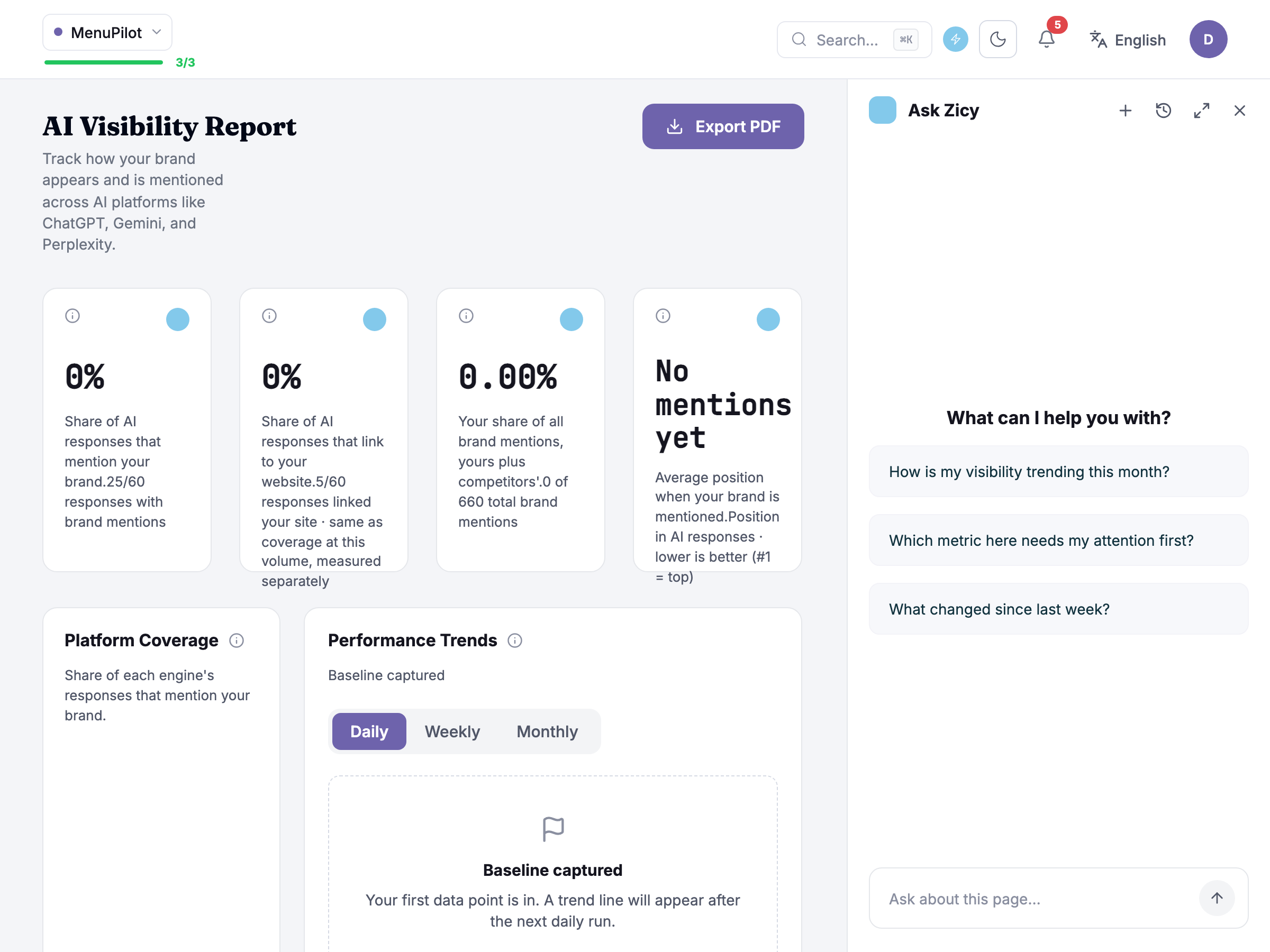 New chat starts a fresh thread, and Chat history brings back earlier ones, grouped under Today, Yesterday, Previous 7 days and Older, with rename and delete (delete asks you to confirm).
Each answer has Copy and Retry. The assistant replies in the language you write in.
Plan and credits
Section titled “Plan and credits”Ask Zicy is not tied to a plan tier, and chatting has no role restriction, so viewers see it as well as owners and members. Approving action cards is more limited, as described above. Organisations with white label can choose to hide it.
Asking questions does not run audits, analyses or content jobs, so it does not use the analysis, site audit page or content allowances. An approved change that does use an allowance, such as adding prompts or starting a Brand Intelligence run, shows what it uses on the card before you approve. If you ask about your plan, it reads your actual plan rather than guessing, and points you to Settings, then Billing, if that lookup fails.
Common questions
Section titled “Common questions”What can Ask Zicy actually see? The page you are on, plus read-only lookups of your own account for the modules and records listed above. It only sees Site Traffic summaries from connections you have made, and it does not see other organisations’ data. It can propose changes, but only you can approve them.
Is it the same as the help articles? Complementary. It searches this help centre, so its explanations come from the same articles, while it adds what your own numbers mean right now. When an answer points at a module you haven’t used, the matching article here is the deeper read.
Can it add a prompt or start a Brand Intelligence run for me? It can propose it. Ask, and it shows an action card; nothing happens until you press Approve. For anything not on the list in “Changes you approve”, it tells you how, takes you to the right page, and in some dialogs prefills fields, but you press the button.
Can I ask it what to do, not just what things mean? Yes. “How do I improve my citation rate?” is a fair question, and the answer will point at the relevant modules. Treat the suggestions as a starting sequence, and use Visibility Gaps as the place where recommended work is tracked.
It said it couldn’t reach my data. Does that mean I have none? No. A failed lookup is reported as a failure, not as an empty result. Ask again, and if it keeps failing, check the module directly.
An answer was wrong or unhelpful. What should I do? Check it against the module that owns the figure, then use Retry or ask again with more detail, such as the date range or the prompt you mean.
What to do next
Section titled “What to do next”- Overview dashboard: open it to see the figures most Ask Zicy questions start from.
- Visibility Gaps: open it when “what should I do about it” needs to become a tracked, prioritised list.
- Prompts: open it to act on a suggestion about which prompts to track.
Related modules
Section titled “Related modules”- AI Visibility Dashboard: the screen most questions start from.
- Prompt Manager: where tracked prompts are added, which Ask Zicy can propose changes to for you to approve.
- Visibility Gaps: where recommended work is tracked.
- Site Audit: a common place to ask “what should I fix first?”.