GBP Audit
What this is for, in one sentence: GBP Audit checks your connected Google Business Profile listing against nine fixed checks and turns whatever it finds into a fix-list you paste into Google yourself.
When to come here:
- After connecting a Google Business Profile listing, to see whether it actually matches what you’ve told Zicy about the business
- Before chasing a citation or ranking problem elsewhere, since a wrong name, address or category on the listing itself can be the real cause
- When you want to see how your listing stacks up against the competitors you already track on Competitive AI Performance
Sarah runs MenuPilot’s Google Business Profile the way she runs most things about the brand — connect it once, then come back when something needs checking. GBP Audit is where she finds out whether the listing on Google still agrees with what Zicy knows about the business, and it’s usually Priya Nair who ends up working the fix list once Sarah’s flagged it.
Open to both profile types now (Micro SME and Business); running an audit still needs an owner or member role. GBP Audit’s sidebar entry carries no size restriction, so a Business-size profile can connect a listing and run an audit the same as a Micro SME profile can.
A viewer can still open the page by direct link, but sees no Run audit button at all: that control only renders for an owner or member.
The API backs this up as well: it refuses a run with a permission error whenever the caller isn’t an owner or member, not just when the button happens to be hidden.
Connecting your listing
Section titled “Connecting your listing”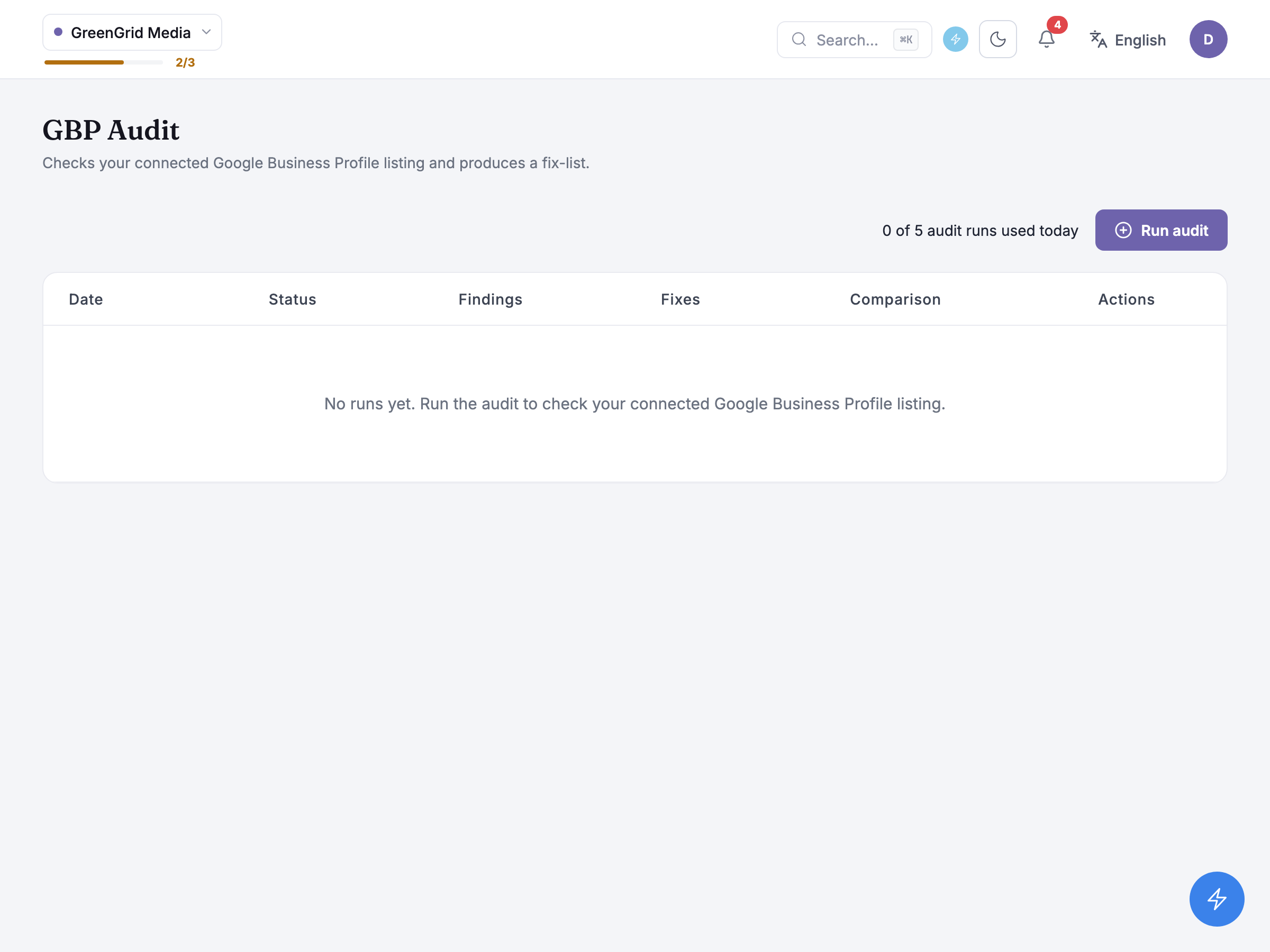
Nadia Rahman at GreenGrid Media has never connected a Google Business Profile listing, and this is the screen that greets her: a Connect Google Business Profile panel sitting above an empty history table, with its own button to start the connection, and a Run audit button that stays disabled until she does.
The same connect step is still reachable elsewhere too, as a button on the Overview page and a status badge on the Brand Profile page, since a Google Business Profile connection belongs to the business profile as a whole and not to this one tool, but GBP Audit no longer makes you leave the page to get there.
That guard lives in the page alone, though: the Run audit endpoint behind the button has no precondition check of its own. A direct call against it with nothing connected still starts a run, and only fails once the run itself can’t find a listing to read.
Honest guidance: the pre-flight check now lives only in the page, not the API. GBP Audit blocks Run audit until you’ve connected a listing, matching the connect panel GBP Optimizer gained in the same release. But that check is a frontend one only, so a call that bypasses the page still fails just once the run can’t find anything to read.
Connecting is a Google sign-in, not a form: the header button hands you off to Google’s own consent screen, and coming back links whichever listing that Google account manages. An account that manages more than one listing is asked to choose, with a search box and a recommended match highlighted, and you have to tick a box confirming it’s the right business before the connection is saved. If the listing you pick is already linked to a different business profile in Zicy, the connection is refused rather than moved — you’d need to disconnect it from wherever it currently lives first.
Disconnecting later happens from that same header badge on the Brand Profile page, with a confirmation step warning that the profile stops syncing; whatever GBP Audit already fetched stays put, it just won’t refresh again until you reconnect.
Audits you have run
Section titled “Audits you have run”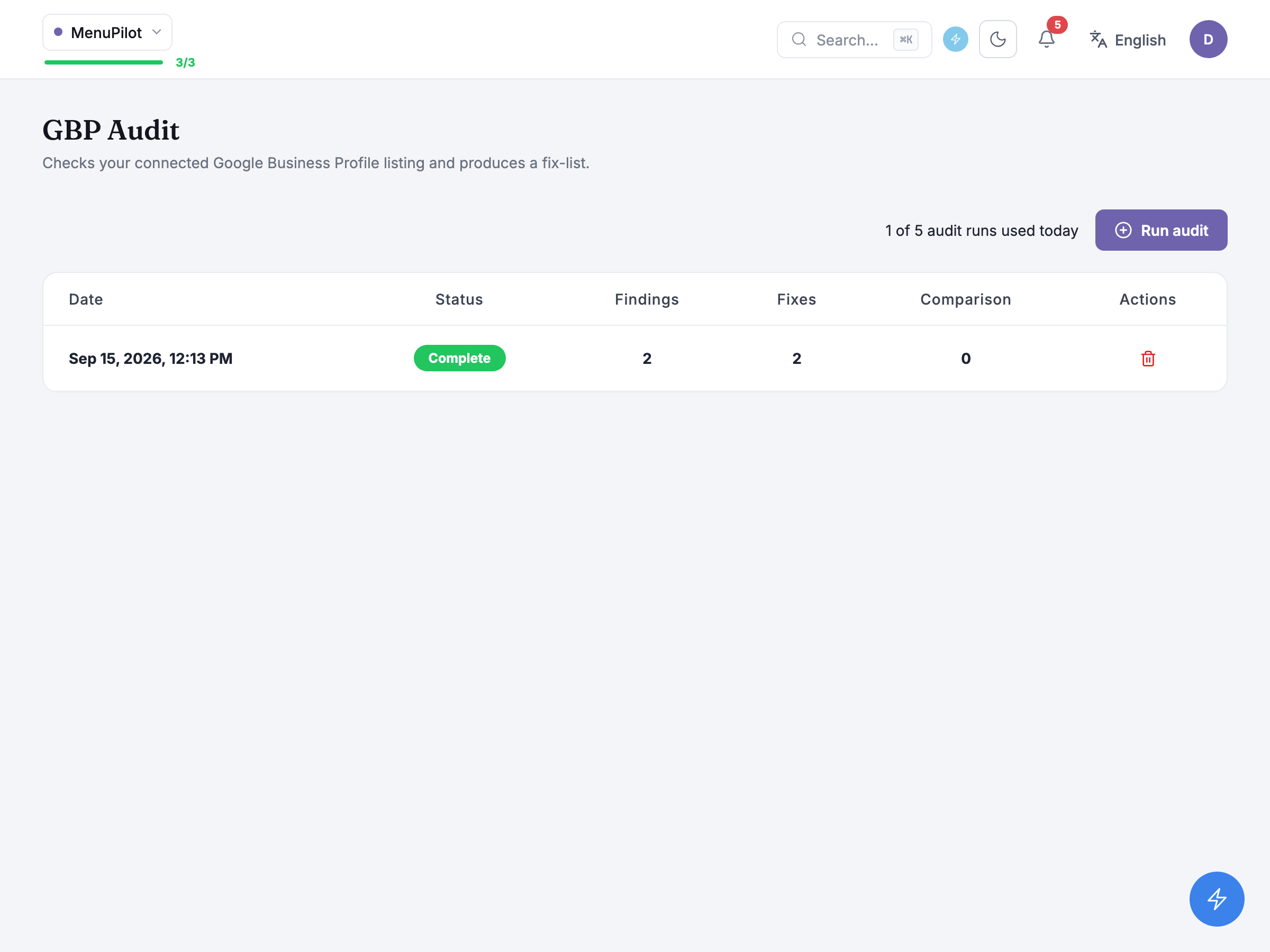
MenuPilot’s history holds one completed run — Sep 15, 2026, 12:13 PM, status Complete, two findings, two fixes, and a comparison column reading zero. The table itself is Date, Status, Findings, Fixes, Comparison, Actions — clicking a row opens that run’s report, and a delete action on each row removes the run and its report for good, with a confirmation step in between.
A member without run permission never sees the Run audit button in the first place. The page shows no running count of audits beside the button; if a profile has already used up its runs for the day, trying to start another gives the message “You’ve reached today’s limit of GBP audit runs for this business profile.”
Every run works through the same nine checks, whatever it finds, and always about your own listing, never a competitor’s. Seven read the listing itself: business hours, website link, phone number, business description, review volume, listed category, and whether the name, address and phone agree with your website (or, failing that, with what’s on file). The other two look at the website the listing points to. Website target flags a website link that points somewhere other than this listing’s own page (off your domain, the company homepage on a branch listing, another branch’s page, a redirect off your domain, or a link that doesn’t load). Location page on your site flags that Zicy couldn’t find a page on your website that is this listing’s own, so the name, address and phone check fell back to the record Zicy holds instead of your site.
Honest guidance — a stuck run doesn’t block the next one. If a run stalls with no progress, it clears itself automatically after a short wait rather than sitting in the way of future runs — there’s nothing to contact anyone about.
Reading the findings
Section titled “Reading the findings”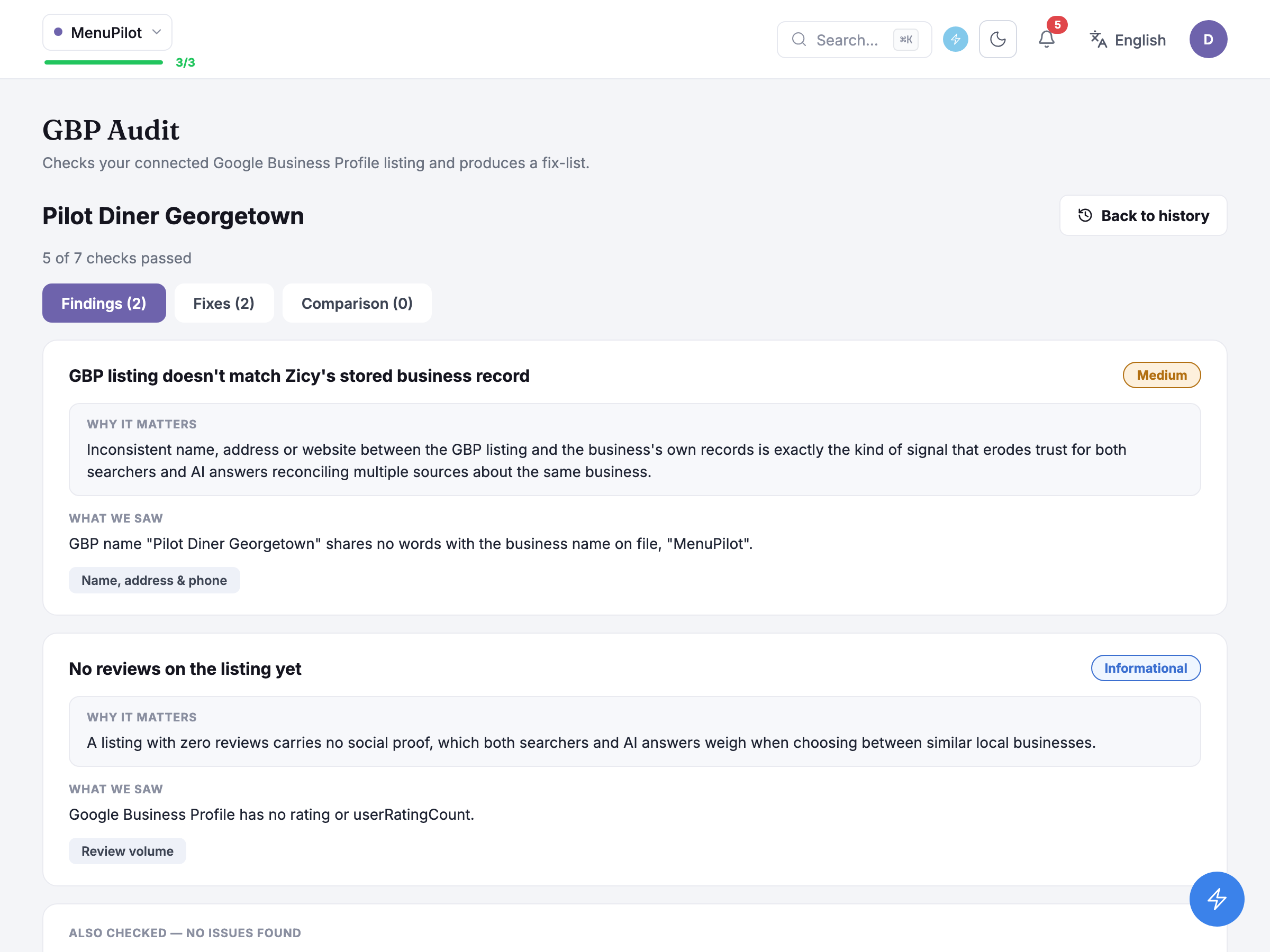
The report opens on the listing’s own name, Pilot Diner Georgetown, as the page heading, with a checks-passed line underneath (this run, from before the two website checks existed, reads 5 of 7 checks passed; a run today counts all nine, so the line ends “of 9 checks passed”) and a Findings (2) / Fixes (2) / Comparison (0) pill switcher for the rest of the report.
Each finding is a card: a title, a severity badge (Medium or Informational here — “Informational” is what a low-severity finding is actually labelled, not “Low”), a Why it matters paragraph explaining the reasoning in general terms, and a What we saw line stating the specific evidence for this listing. MenuPilot’s two findings this run: GBP name “Pilot Diner Georgetown” shares no words with the business name on file, “MenuPilot”, flagged under the name-and-address check at Medium severity; and the listing carries no rating or review count yet, flagged under the review-volume check at Informational severity — zero reviews isn’t broken, just worth knowing about. Below the cards, Also checked — no issues found lists the five checks that passed clean: business hours, website link, phone number, business description, and listed category.
Every field a check reads for the listing side — website, phone, description, hours, category and reviews, plus the name and address that check compares — comes from the connected Google sign-in whenever one exists, read live from that same session, and only falls back to a pasted Google Maps link when there’s no live connection to read. The other side of the name, address and phone check is your website. Zicy follows the listing’s own website link and, if it lands on this location’s page on your site, compares the listing against the name, address and phone that page declares, read live at the time of the run. Only when no such page is found does it fall back to what the Brand Profile page holds for the business: the business name and the city of your primary location. On that fallback the phone isn’t compared at all, because the phone is only ever checked against your website.
Working through the fixes
Section titled “Working through the fixes”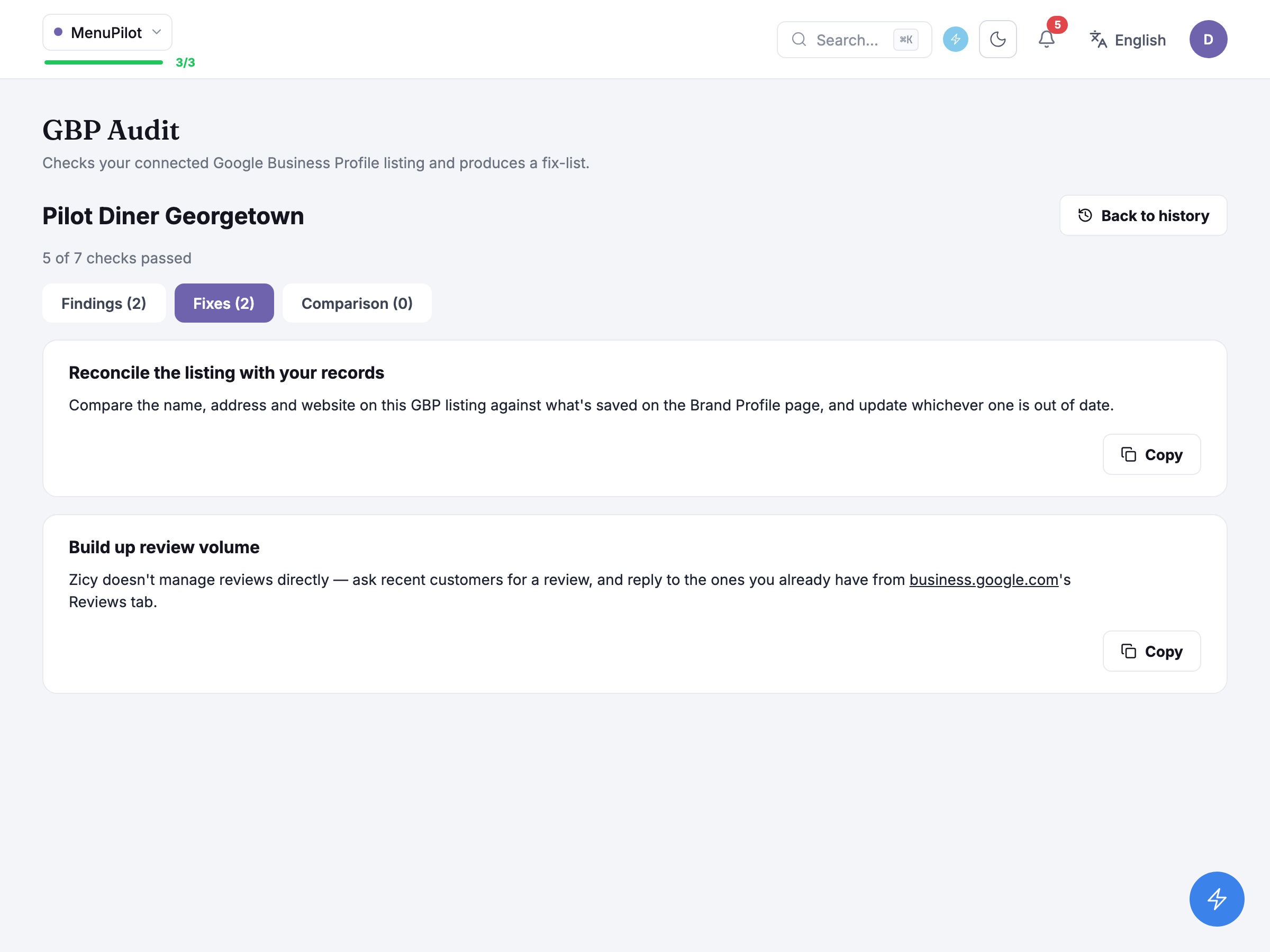
Each finding gets a matching fix card: a short heading, an instruction, and a Copy button. The Fixes tab groups the cards under two headings, On your website and In Google Business Profile, and shows only the headings that have a fix under them. Today the only fix that lands under On your website is the one for Location page on your site: add a page on your own site for this location, with its address and phone number in schema markup. Every other fix lands under In Google Business Profile, and its instruction is written for business.google.com.
On a run made today, those two fixes would both sit under In Google Business Profile. If Zicy again found no page for this location on MenuPilot’s website, that run would also add the Location page on your site fix under On your website. The two fixes read Reconcile the listing with your records, which says to compare the name, address and website against the Brand Profile page and update whichever is out of date, and Build up review volume, which says Zicy doesn’t manage reviews directly, so this one points you at asking customers and replying from the Reviews tab yourself.
Honest guidance — nothing here writes back to Google, or to your website. Every fix is instructions for you to carry out by hand, in business.google.com or on your own site; nothing in Zicy edits your live listing or your pages. Re-run the audit afterwards if you want to confirm a change landed.
Branches and possible duplicates
Section titled “Branches and possible duplicates”If a profile has more than one claimed Google Business Profile branch, a Branch picker sits above the page, and each branch is audited separately. A branch that looks identical to another claimed branch carries a warning triangle in the picker, and hovering it shows “Another claimed branch looks identical to this one — possible duplicate listing.” It is a prompt to check whether the same location has been claimed twice, not a finding in the report.
Comparing with competitors
Section titled “Comparing with competitors”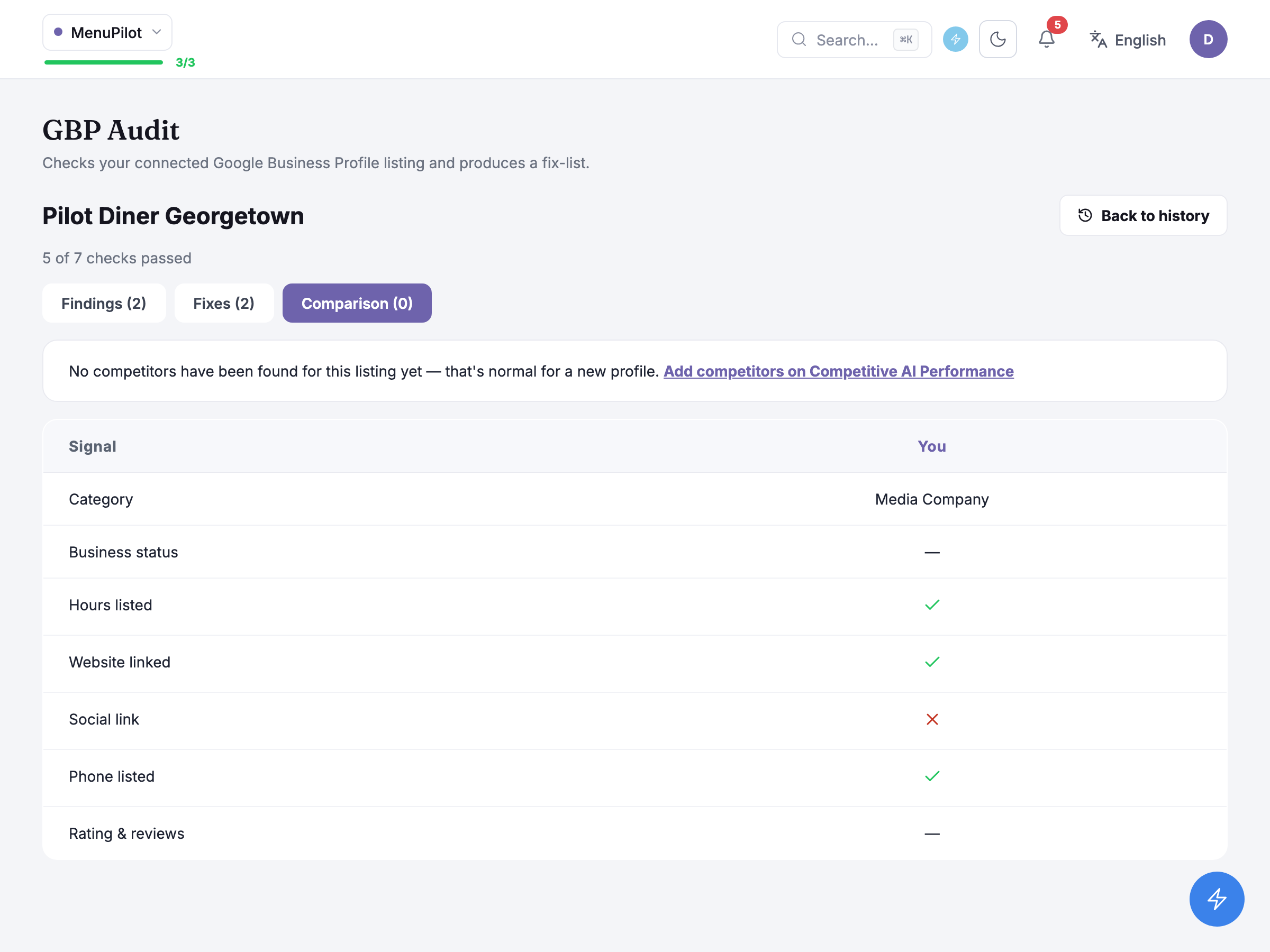
The Comparison tab has no picker of its own — it automatically pulls whichever brands your Competitive AI Performance page already tracks, up to four, ranked by share of voice, and lines them up against your own listing under a Signal / You table: category, business status, hours listed, website linked, social link, phone listed, and rating and reviews.
MenuPilot’s run doesn’t have a competitor resolved yet, so its Comparison tab shows the You column on its own, with a note that no competitors have been found for this listing and a link to Add competitors on Competitive AI Performance. That’s a different empty case from having no comparison at all — your own row is always computed, even before a single competitor shows up beside it. GreenGrid Media doesn’t reach this screen at all: with no completed run, it has no report, and so no Comparison tab to show.
Common questions
Section titled “Common questions”Does running an audit use up a quota? No — a run doesn’t draw down analysis credits, and viewers never see a run button to begin with. What limits a run are two guards: only one runs at a time per business profile, and a profile can only start so many in a day. You’ll meet either as a message when you try to start one, not as a count on the page.
Why does GBP Audit sometimes find an issue GBP Optimizer can’t help with? GBP Optimizer only writes AI suggestions for two of the nine checks: the business description and the listed category. A finding on any of the other seven checks, including the name-and-address mismatch MenuPilot’s run has, still shows up here with its own copy-paste fix, but GBP Optimizer has nothing to generate for it.
Can I choose which competitors show in the comparison? No — the four shown are whichever brands you already track on Competitive AI Performance, ranked by share of voice, chosen automatically each time a run starts. Add or remove tracked competitors there, not here.
What to do next
Section titled “What to do next”- GBP Optimizer — generates an AI-written suggestion for the two findings it covers, once GBP Audit has found them.
- Brand Profile — where the Google sign-in actually lives: connect, reconnect or disconnect the listing from its badge.
- Competitive AI Performance — add or remove the competitors this report’s Comparison tab pulls from.
- Impact Tracker — mark the day you carry a fix over to business.google.com, to see whether anything moved afterwards.