Content Studio
What this is for, in one sentence: Content Studio is the single library for everything the Content Generator writes and the Content Optimizer scores, so you can find, reopen and reuse it without going back to the tool that made it.
When to come here:
- To find an article or an optimised page you or a teammate made earlier, instead of hunting through Content Generator or Content Optimizer for it
- Before starting a new piece, to check whether something already covers the topic
- To reopen a finished item to edit, translate or export it
Marcus Tan runs NorthStar Digital as an agency, so his workspace is the only demo profile with all seven Take Action tools in its sidebar. Whatever Content Generator writes and Content Optimizer scores for his clients ends up here, in one list he can search rather than one he has to remember.
Business profiles only, and an owner or member role. Content Studio is available to profiles set up as a Business — NorthStar Digital is the only demo profile of that size. Profiles set up as Micro SME don’t get the Content Studio item in the sidebar at all.
A viewer role doesn’t get in either, even by direct link: the route itself turns them back, not just the sidebar entry.
Your library
Section titled “Your library”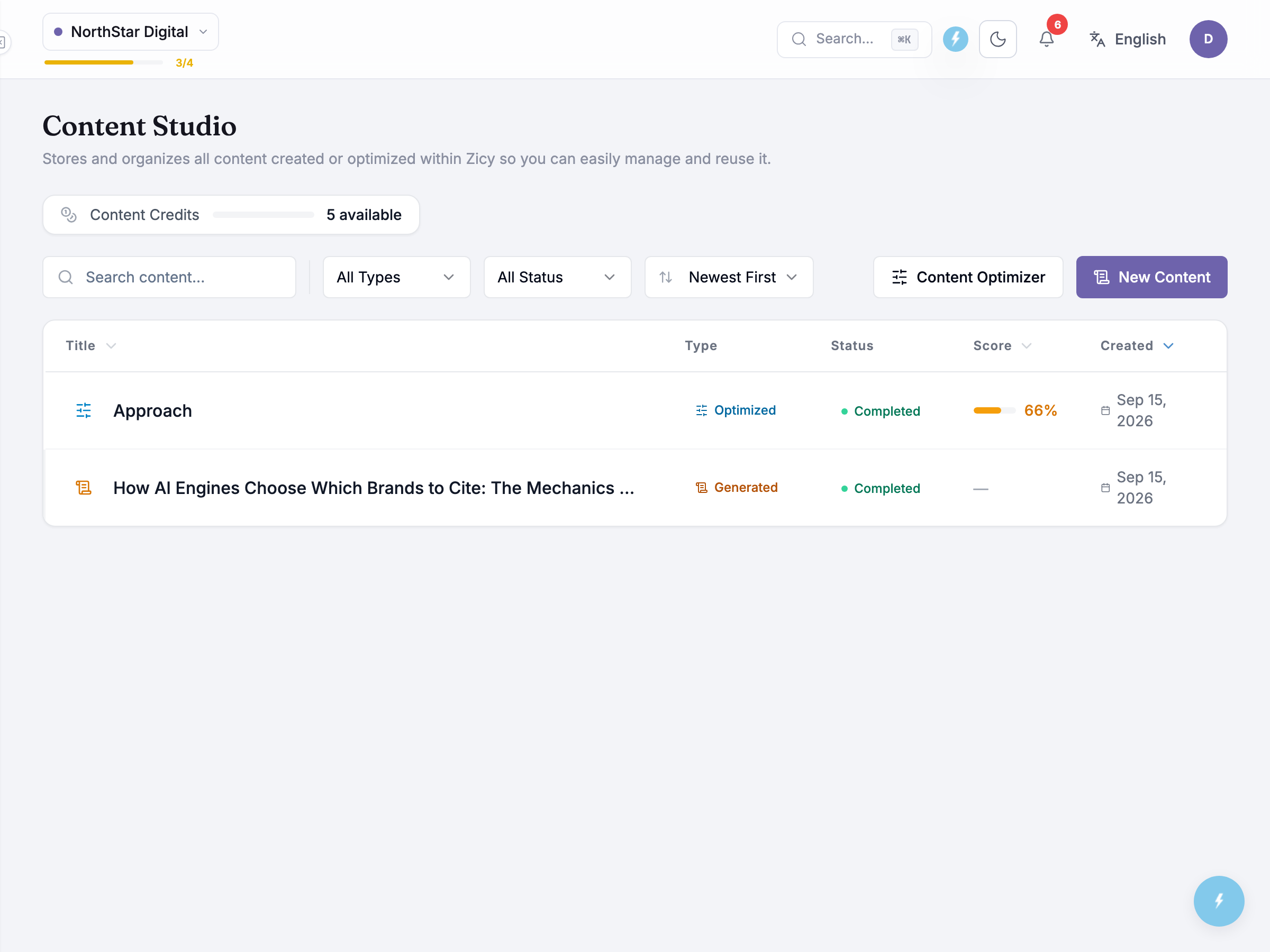 Content Studio’s own description is plain: Stores and organizes all content created or optimized within Zicy so you can easily manage and reuse it. Two kinds of item land here — an article Content Generator wrote, or a page Content Optimizer scored — and nothing else. Schema Generator’s markup and the LLMs Generator’s file live in their own tools’ storage, not in this library.
The table lists Title, Type, Status, Score and Created for each row. NorthStar Digital’s library currently holds two items: a page called Approach, marked optimised and completed at 66%, and an article titled How AI Engines Choose Which Brands to Cite: The Mechanics of AI Visibility, marked generated and completed with no score at all.
The Score column only ever carries a value for an optimised page — 66% here, matching what Content Optimizer measured the last time it analysed Approach. That score is a snapshot from analysis time, not a live number: it won’t move on its own if the page changes afterwards. An item the Content Generator wrote always shows a dash in that column instead, because quality scoring only ever runs against optimised content.
Honest guidance — “generated” covers more than one pipeline. An older Content Generator job and a newer one both surface under the same generated badge in the Type column; nothing in the table tells you which pipeline produced a given article, only that Content Generator did.
Clicking a finished row opens a dialog for that item — its type, status, word count and (for an optimised page) its score, next to the content itself in an editor, with buttons to export, translate or close it again. An unfinished optimised page, or an unfinished article from the newer Content Generator pipeline, behaves differently: it takes you straight back to wherever the tool left off, rather than opening a preview of something that isn’t there yet. An older Content Generator job doesn’t get that treatment — it always opens the same dialog regardless of status, one more place where the two pipelines hiding behind the same generated badge show through.
A Content Credits card sits above the table, reading 5 available. That’s what the screen shows, and nothing more — it’s a running count, not a breakdown of what draws it down or how it refills.
Two buttons sit beside the filter bar: Content Optimizer and New Content. Neither opens a dialog — both just take you to the tool that makes new content. There’s no way to draft or create anything from inside Content Studio itself; it only ever holds what those two tools finish.
Filtering and sorting
Section titled “Filtering and sorting”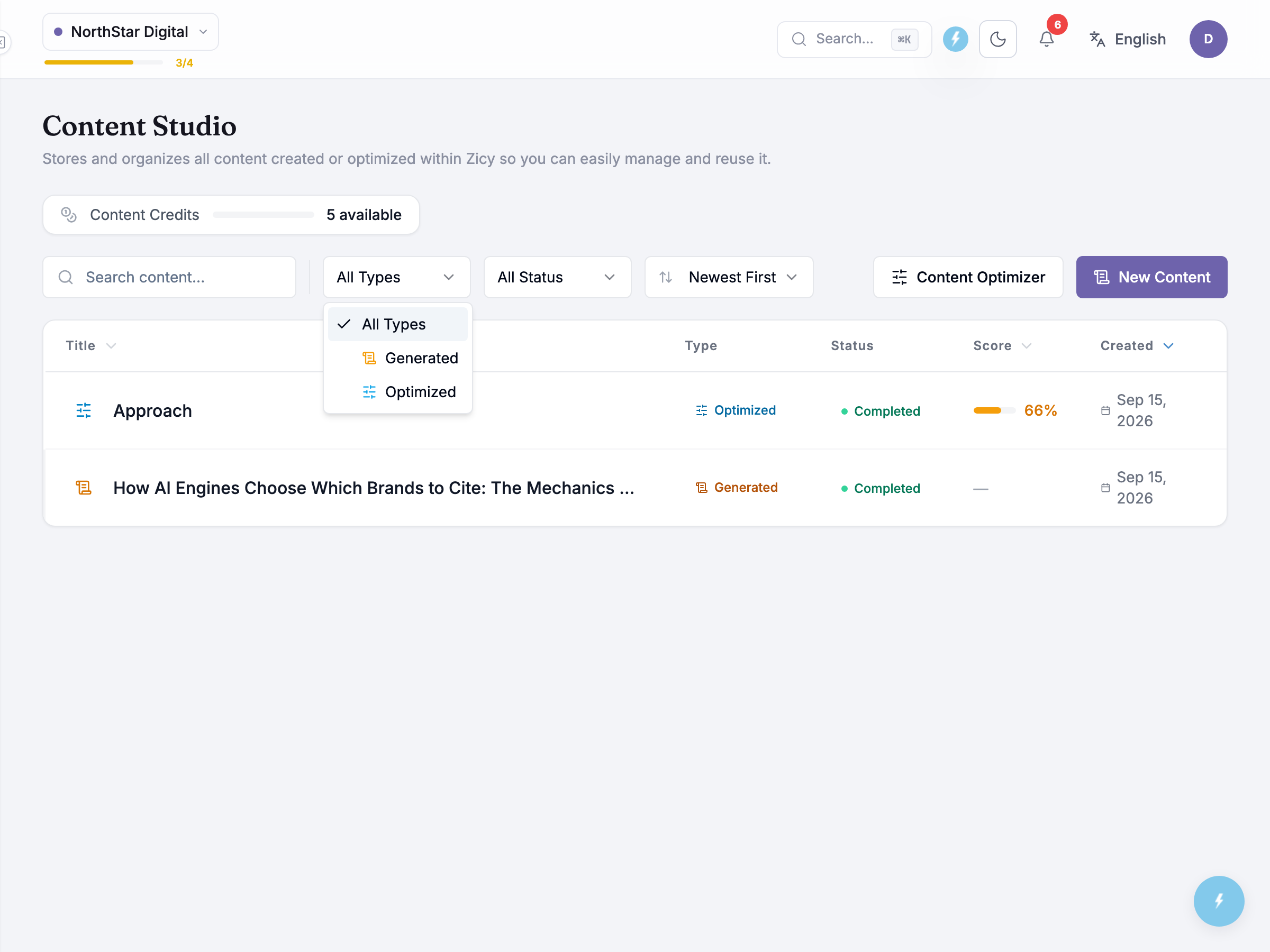 A filter bar runs across the top of the table: a search box (placeholder Search content…), a type filter defaulting to All Types and open here to show the two content types alongside it, a status filter defaulting to All Status, and a sort menu defaulting to Newest First — Oldest First, Recently Updated, Title A-Z, Title Z-A, Highest Score and Lowest Score are the other options. A Clear control resets all of them at once.
Honest guidance — sorting by score only moves the optimised items. Quality scoring never runs on anything the Content Generator writes, so Highest Score and Lowest Score effectively tie every generated article at one end of the list. They’re useful for finding your best or weakest optimised pages, not for ranking articles.
Common questions
Section titled “Common questions”Can I create new content from inside Content Studio? No — Content Optimizer and New Content both just take you to the tool that makes it. Content Studio only ever holds what those two tools finish.
Why does one row show a score and the other doesn’t? Only an optimised page carries a quality score; anything the Content Generator writes always shows a dash there instead.
What happens if I delete something? It’s removed for good. Deleting asks you to confirm the title first, and there’s no undo afterwards.
What to do next
Section titled “What to do next”- Content Generator — writes the articles that land here.
- Content Optimizer — scores and rewrites the pages that land here.
- Schema Generator — structured data for a page, stored separately from this library.
- LLMs Generator — the crawler file, also stored separately.