Brand Profiles & Switching Between Brands
What this is for, in one sentence: brand profiles are how Zicy keeps each brand’s world separate — its own prompts, competitors, dashboards, and reports — and the Select Brand screen is how you move between them.
Who uses this most: everyone touches it once; agencies live in it. If you manage one brand, you’ll set this up once and rarely return. If you manage many clients, this is your front door every day.
For this article we follow Marcus, an account director at NorthStar Digital, an agency managing several clients — including MenuPilot from our other guides.
The Select Brand screen (your client list)
Section titled “The Select Brand screen (your client list)”After logging in, you land on Select Brand — the list of every brand profile in your account. How many you can have depends on your plan — see zicy.com/contact for current limits.
What each part does:
- Search box — start typing a brand name or website to jump straight to it. Essential once your list grows past a handful.
- Setup-status signal — each brand shows where it stands: a fully configured profile reads as ready, while one that still needs attention is flagged as incomplete. At a glance you can see which clients are actually being tracked and which ones you still have to finish setting up.
- Pin (the pin icon) — pins a brand to the top of the list and into your quick-switch dropdown (more on that below). A brand that isn’t pinned yet shows a crossed-out pin; hover it and the tooltip reads “Pin profile to top,” so you’re never guessing what the icon does. Pin the clients you touch daily.
- Delete (the bin icon) — removes the profile and all its tracking history. Deleting a profile asks you to type the profile name to confirm, so a stray click can’t cost you a client’s history — but once confirmed, it is permanent.
If your account belongs to an organisation, you may also see an invitation banner near the top. It carries a short explanatory tooltip telling you what accepting does and where it puts you, so it’s clear before you click.
A note on words: Zicy says “brand profiles”; if you’re an agency, read that as “clients.” Same thing.
Opening a brand — the Switch Profile check
Section titled “Opening a brand — the Switch Profile check”When you click a brand, Zicy asks you to confirm before opening it.
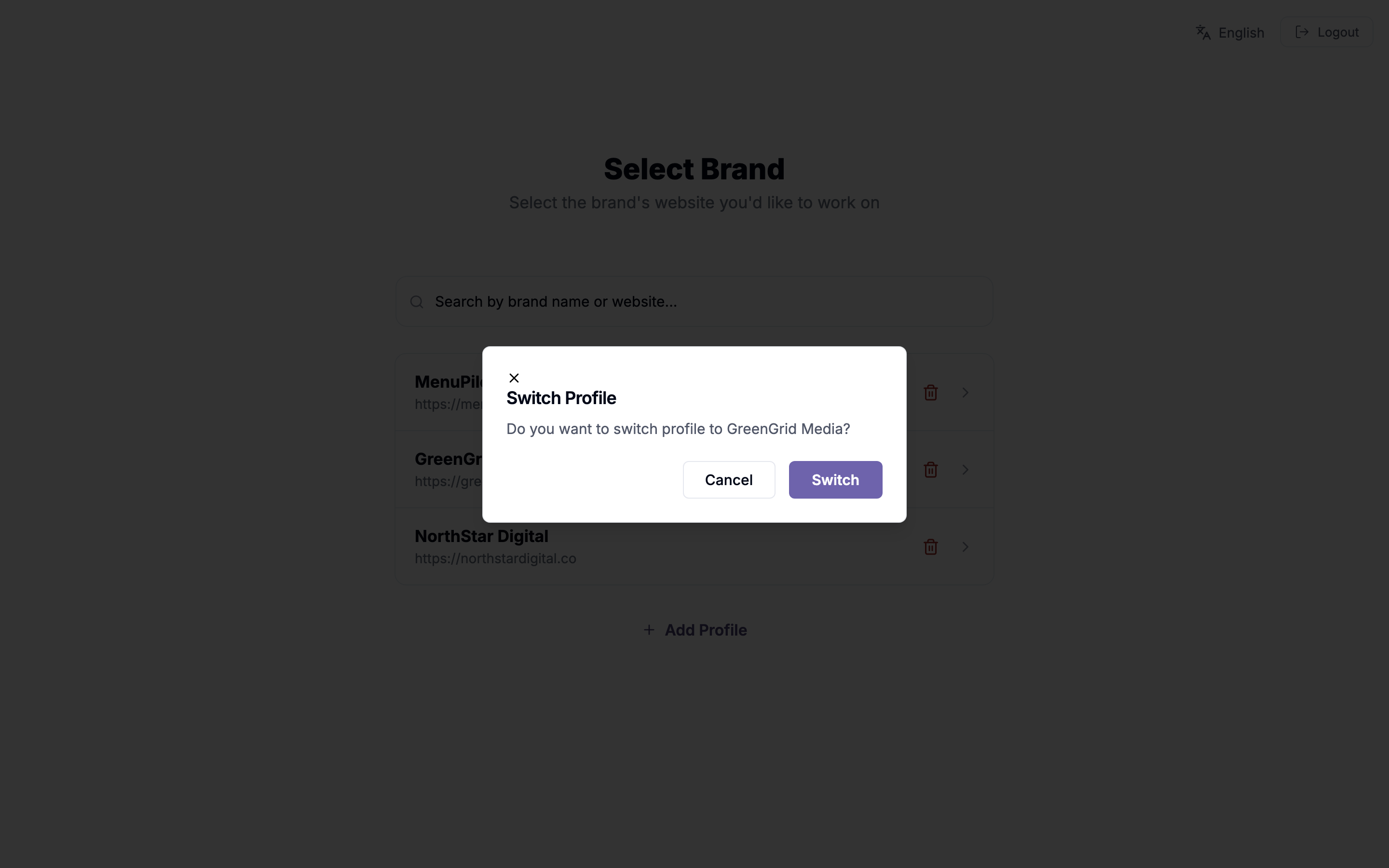
This might feel like an extra click, but it’s a deliberate safety net: for anyone juggling many clients, it prevents the classic mistake of adding prompts or generating content inside the wrong client’s account. Read the name, confirm, proceed.
Always know whose data you’re looking at
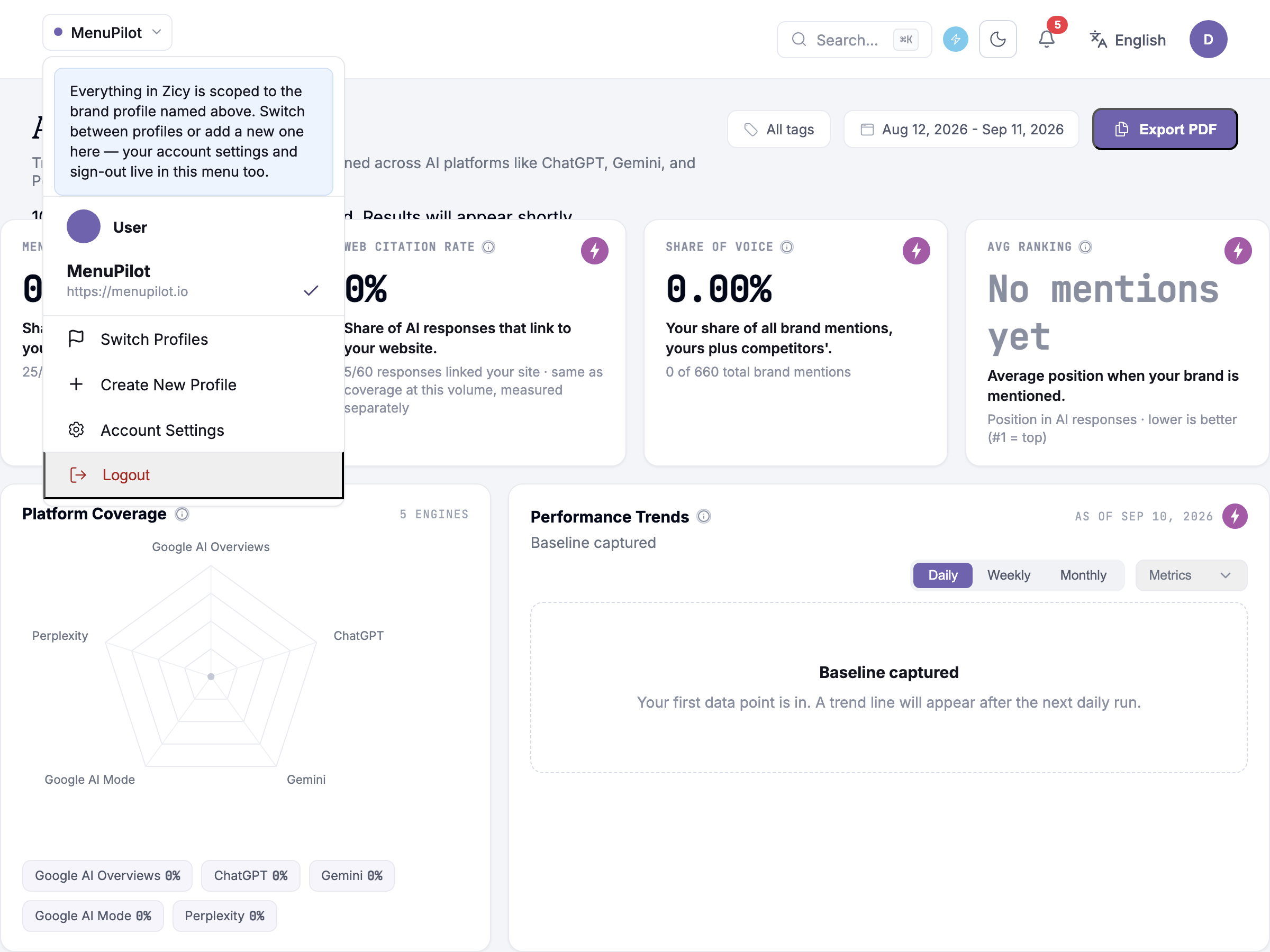
Section titled “Always know whose data you’re looking at”Once inside, the top-left corner of every screen shows which brand you’re working in, as a pill with the profile’s name on it. Before you read a number, change a setting, or export a report — glance there first. It’s the single most useful habit for multi-client work.
Clicking it opens a quick-switch menu, showing your Current Profile and any pinned clients one click away, alongside Switch Profiles for the full list, Create New Profile, and Account Settings — without hunting through navigation.
Creating a new brand profile
Section titled “Creating a new brand profile”The full walkthrough lives in Setting Up Zicy for the First Time (GS-01) — the short version: click Create New Profile, paste the brand’s website, let Zicy auto-fill the form, check every field, save.
A few current-state details worth knowing before you save:
- If the website redirects, Zicy notices and asks you to confirm the destination it landed on rather than quietly profiling whatever the redirect points to. That matters most for agencies: a client’s old domain that now forwards elsewhere won’t silently pull the wrong company’s data.
- If another profile already uses the exact same website address, Zicy blocks the new profile and points you to the existing one.
- If another profile uses the same domain with a different link, Zicy warns you rather than blocking you. For example, if a MenuPilot profile already uses menupilot.io and you enter menupilot.io/sg/, the form shows “MenuPilot” already uses menupilot.io. It adds that you should only create a separate profile if the link is for a different country or language, like /sg/ or /en/, and otherwise use the existing profile. A note explains that site audits look at the whole website, so the new profile’s results may include pages from the existing one. Nothing is created yet. If you do want the second profile, click Create Profile again to continue.
- Primary Location starts empty — it reads “Select primary location” until you choose, so nothing gets measured against a random default country you didn’t pick.
- A brand-new profile shows a short guidance popup the first time you open it, pointing you to your next step (adding prompts) instead of dropping you onto an all-zero dashboard with nothing to do.
For agencies, two profile-creation habits pay off:
- Name profiles the way your team talks. The profile name is what appears in your list and reports — “MenuPilot” beats “menupilot.io project 2.”
- Check the auto-filled fields extra carefully for client profiles. You know your own brand by heart; you might not catch a wrong detail about a client’s. The Brand Name, Variations, and Primary Location fields decide what gets measured.
Pitching Mode — audits for brands you haven’t signed yet
Section titled “Pitching Mode — audits for brands you haven’t signed yet”At the bottom of the profile form sits the Enable Pitching Mode toggle. Switched on, it creates a special kind of profile: Zicy runs a full one-off audit of the brand, but scheduled tracking stays off.
This one is plan-gated rather than agency-only: whether the toggle appears, and whether it can still be switched on, depends on your subscription plan rather than on whether you manage clients.
Why this exists: it’s the agency new-business move. Before a prospect has signed anything, you run their audit, walk into the pitch with their real AI-visibility data — where they’re invisible, who AI recommends instead — and let the numbers make the argument. Because tracking is off, the prospect profile doesn’t keep consuming your quota period after period.
If the prospect becomes a client, create their real profile (or switch tracking on) and start measuring properly.
Common questions
Section titled “Common questions”How many brand profiles can I have? It depends on your plan: Starter 1, Growth 3, Scale 5, Enterprise unlimited. Agency plans work in client workspaces instead — up to 10 on Agency, up to 25 on Agency Scale. See zicy.com/contact for current limits. Prompts, analyses, and content credits are separate plan limits, shared across your whole account.
Does each brand get its own data? Yes — prompts, competitors, dashboards, topics, sentiment, and exports are all per-profile. Nothing bleeds between clients.
Can I restrict a teammate to specific clients? Yes — team roles and per-client scoping are covered in the Team, Settings & White Label article.
I deleted a profile by mistake — can I get it back? No — deletion is permanent once confirmed. The typed-confirmation step exists precisely so it can’t happen by accident: the name you type is the history you lose. Pin the profiles you use.
What to do next
Section titled “What to do next”- Setting up your first brand? Setting Up Zicy for the First Time (GS-01).
- Just created a profile? Your next stop is prompts: How to write tracked prompts that actually work (GS-02).
- Agency running many clients? The Zicy for Agencies guide walks the whole per-client workflow, from pitch to monthly report.