Content Optimizer
What this is for, in one sentence: Content Optimizer analyses one page you already have — by URL or pasted text — and scores it, then rewrites the sections that will move that score, with every rewrite held for your review before it can leave the tool.
When to come here:
- When a page already exists and you want to know what is holding its AI visibility back, rather than writing something new
- After Site Audit or Visibility Gaps points at a specific page, to turn that finding into an actual rewrite
- When you have a rewrite ready and need it checked, exported and handed off without republishing it as a new page
Marcus Tan runs NorthStar Digital as an agency, and this is where he takes a page the firm already has — its own “How we build AI visibility” page, say — and asks what would raise its score without starting the page over.
Business profiles only. Content Optimizer is available to profiles set up as Business size — NorthStar Digital is the only demo profile of that size. Profiles set up as Micro SME don’t get the item in the sidebar at all, so its absence there is the profile type, not a fault. Only an owner or a member can open it at all: a viewer who reaches the URL directly is redirected away, not shown a locked screen.
Choosing a page and a tone
Section titled “Choosing a page and a tone”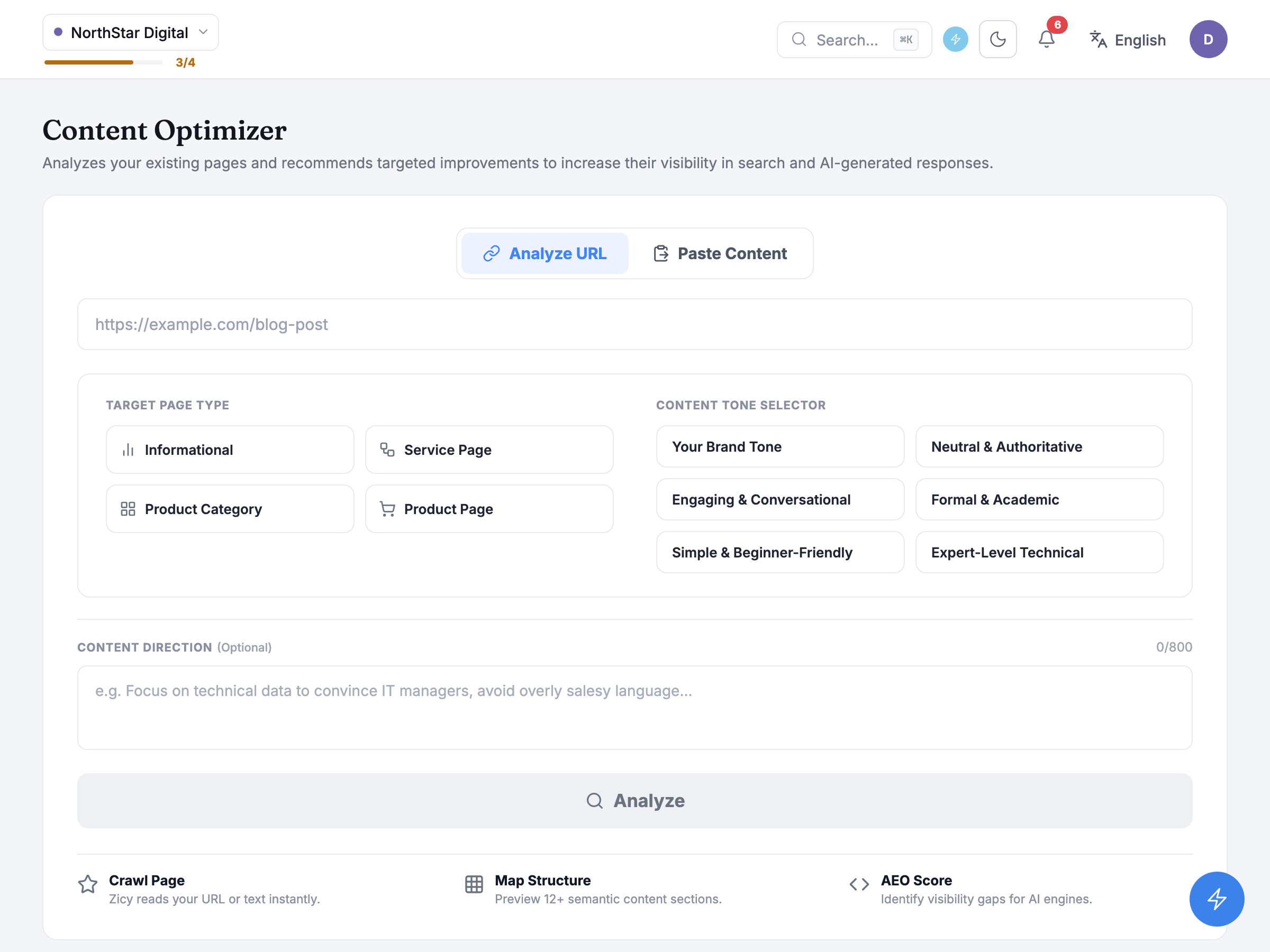
The subtitle sets the scope: the tool Analyzes your existing pages and recommends targeted improvements to increase their visibility in search and AI-generated responses. — this is a page you already have, not a brief for a new one. Two tabs choose how it gets the content: Analyze URL fetches a live page for you, and Paste Content takes markdown or plain text you supply yourself, for a page behind a login or one you haven’t published yet. The URL field is prefilled with a placeholder shape, https://example.com/blog-post, and pasted content has to run to a reasonable length before Analyze will accept it.
Before either mode can run, the page context card asks two questions: Target Page Type — Informational, Service Page, Product Category or Product Page — and a Content Tone Selector built from that choice: five tones tailored to the page type (for an informational page, Neutral & Authoritative, Engaging & Conversational, Formal & Academic, Simple & Beginner-Friendly, Expert-Level Technical), plus a universal Your Brand Tone option that sits above all three sets. A Content Direction (Optional) field lets you add free-text steering — up to 800 characters — that gets folded together with the chosen tone before the analysis runs.
Underneath the form, a feature strip previews what the run will actually do: Crawl Page — “Zicy reads your URL or text instantly.” — Map Structure — “Preview 12+ semantic content sections.” — and AEO Score — “Identify visibility gaps for AI engines.” A recent-documents strip lower on the page lists your most recently saved documents so you can reopen one instead of starting fresh.
Running the analysis
Section titled “Running the analysis”Clicking Analyze doesn’t start the run straight away — it opens a Confirm Analysis dialog first, which restates what’s about to happen and shows your available credits as what the screen shows, not as a fixed cost you’re being asked to accept: it displays the same reading whichever input mode you’re in.
Honest guidance — the confirm dialog reads the same either way. The dialog’s wording is the same for both tabs, so don’t read it as a fixed cost.
Once confirmed, the screen switches to a progress view while the analysis runs, and it explicitly invites you to leave: a line on that screen says you can navigate to other pages and it will let you know when the analysis is done. That’s not an idle claim — a toast appears wherever you’ve navigated to once the analysis finishes, with a button back to the results, and a floating pill in the corner tracks live progress and returns you to this page if you click it.
Honest guidance — durations are estimates, and only the analysis is watched everywhere. A short page usually reads in well under a couple of minutes, longer pages take a bit more; treat the progress view as “in progress,” not a countdown. And the toast-and-pill pattern above only follows an Analyze run — if you leave the page while a rewrite is being applied instead, nothing will call you back to it; you’ll need to return to Content Optimizer yourself to see whether it finished.
Reading the score and the suggestions
Section titled “Reading the score and the suggestions”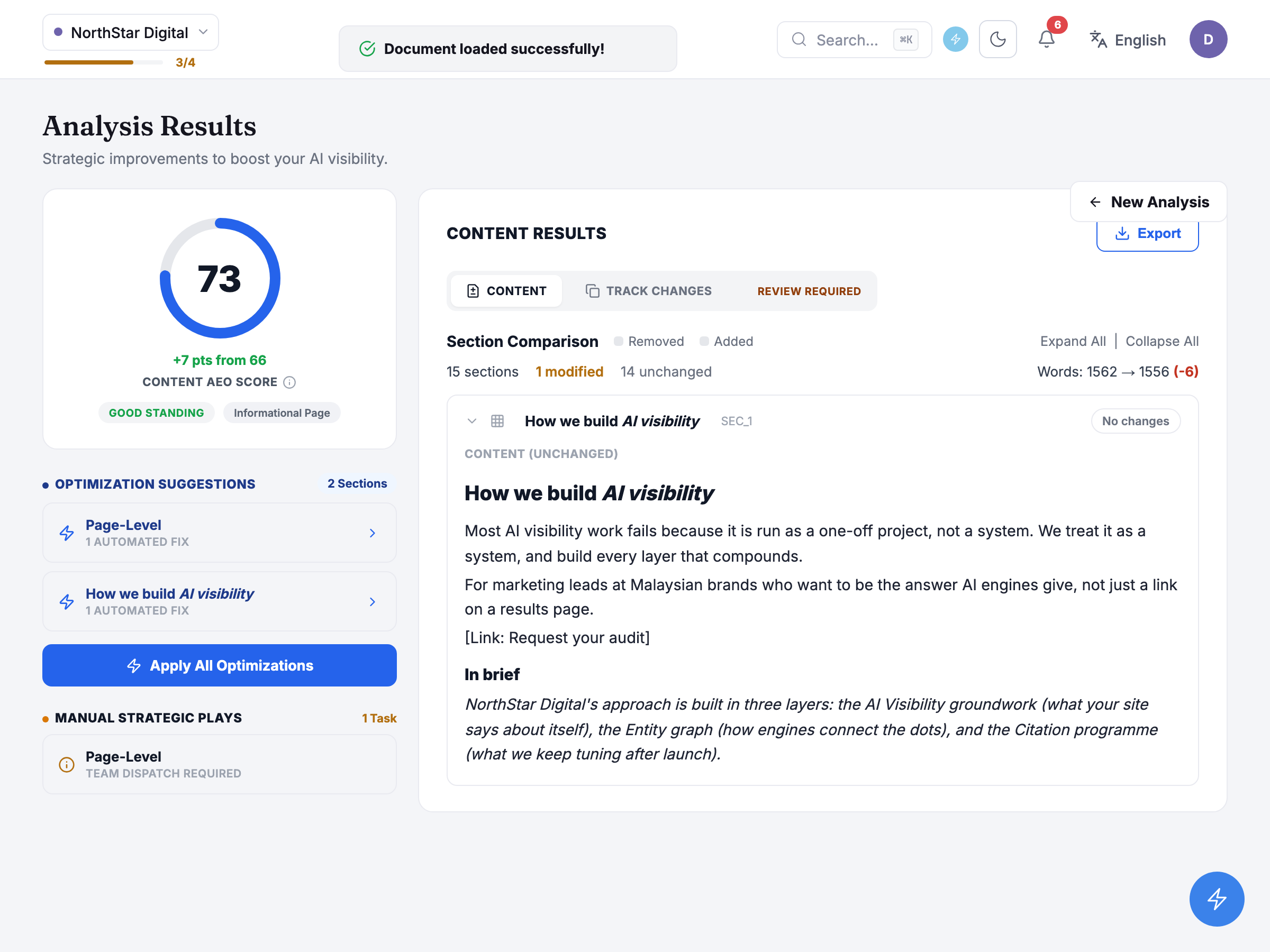
A finished analysis opens on Content AEO Score, one number out of 100 with a plain-language tier underneath it — excellent, good standing, needs work, or poor, depending where the score lands. The demo page reads GOOD STANDING, +7 pts from 66, a NorthStar Digital informational page that moved from a starting score of 66 to 73 after a rewrite, with a page-type badge above the score naming it an Informational Page. A tooltip on the card spells out what feeds the number: structure, clarity, citations, authority signals, readability and relevance, considered together rather than as separate marks.
Below the score sit two distinct lists, and the distinction matters. Optimization Suggestions — tagged 2 Sections here — are the ones the tool can act on for you: each one names the section it targets and can be applied with a click, individually, as a batch you tick yourself, or all at once. Manual Strategic Plays — 1 Task in this case — are suggestions the tool can describe but not execute: things that need a person to actually do, like reaching out to a partner site or restructuring how a whole section of the business talks about a topic, rather than a paragraph a machine can rewrite in place. Applying an automated suggestion, individually or as a batch, doesn’t draw on your content credits the way the original analysis did — only the analysis itself is billed.
A Review required banner sits where the export and hand-off controls would otherwise be: Open Track Changes in the results panel and confirm the edits. The hand-off instructions unlock once you have. Nothing downstream of a rewrite — export, hand-off, saving — becomes available until that review happens, which is the subject of the next section.
Reviewing the rewrite
Section titled “Reviewing the rewrite”The Content Results panel carries two tabs: Content, the live page as it now reads, and Track Changes, which is where a rewrite is actually reviewed. Before you confirm anything, a banner spells out the deal plainly: These edits were written by the optimizer. Read them here first — export, hand-off and saving stay locked until you confirm.
Section Comparison opens with the shape of the change across the whole document — 15 sections, 1 modified, 14 unchanged — and the document’s overall word count moved from 1,562 words to 1,556 words, a small net (-6). Each section then gets its own card: an unchanged section is marked plainly with no further detail to review, while the one modified section here shows its Original copy against the Optimized rewrite side by side, a Word-level Changes view highlighting exactly what moved, and a similarity reading so you can judge at a glance how much of the original language survived rather than changed outright. Expand All and Collapse All open or close every card at once rather than one at a time.
Reading the diff is only half the gate: a button reading I’ve reviewed these changes is what actually unlocks everything else, and it’s tied to this specific rewrite — running another optimisation afterwards re-locks the gate until you confirm that one too. Two exports are deliberately exempt from this gate: exporting the comparison itself, as a Word document or a PDF, is allowed unreviewed, on the reasoning that reading a diff on paper counts as reviewing it. Everything else — downloading the rewritten content as a Word document, a PDF, or to the clipboard, and the hand-off card — stays locked until you click through.
Once unlocked, the hand-off card writes an email for whoever actually publishes the page: an instruction to replace the content at the page’s URL while keeping that URL exactly as it is, with a note that this is a rewrite of an existing page, not a new one, so it must not be published at a new address. A separate, always-available implementation-guide download produces a plain-text list of every suggestion — automated and manual alike — as a standing reference, independent of whether any of them have actually been applied yet.
Honest guidance — “Recent Documents” keeps growing. Every analysed document you save stays in your saved-document history indefinitely; only the newest few show on the input screen, but nothing is ever pruned from the underlying list on your behalf.
Common questions
Section titled “Common questions”Why does “Apply All” show my score changing before I’ve reviewed anything? The score and the rewrite are produced together, but they’re two different gates: the score updates as soon as a rewrite is generated, while export, hand-off and saving all wait on the separate Track Changes confirmation. Read the diff before you rely on either.
Can I get back to a document after I’ve closed the tab? Yes — an in-progress analysis resumes automatically if you return within about a quarter of an hour or so of starting it, and a saved document reopens from the input screen’s recent list at any time afterwards, read from where you left it.
What to do next
Section titled “What to do next”- Internal Linking: once a page reads well, see which of your other pages should link to it.
- Schema Generator — for structured-data work on the same page once its content is settled.
- Content Studio — where every optimised and generated document, including this one, is listed together.
- Content Generator — for a page that doesn’t exist yet, rather than one you’re improving.