Setting Up Zicy for the First Time
Who this guide is for: anyone starting a free trial or opening Zicy for the first time. No technical knowledge needed. Total time: about 15 minutes of your effort, then Zicy works in the background.
What you’ll have at the end: your brand set up, your first tracked questions running across five AI platforms, and a dashboard that fills up with your first results within about 30 minutes.
Throughout this guide we follow Sarah, a marketing manager at MenuPilot, a company that makes AI menu software for restaurants. Every screenshot shows her setup — your screens will look the same with your own brand’s details.
Step 1 — Create your account
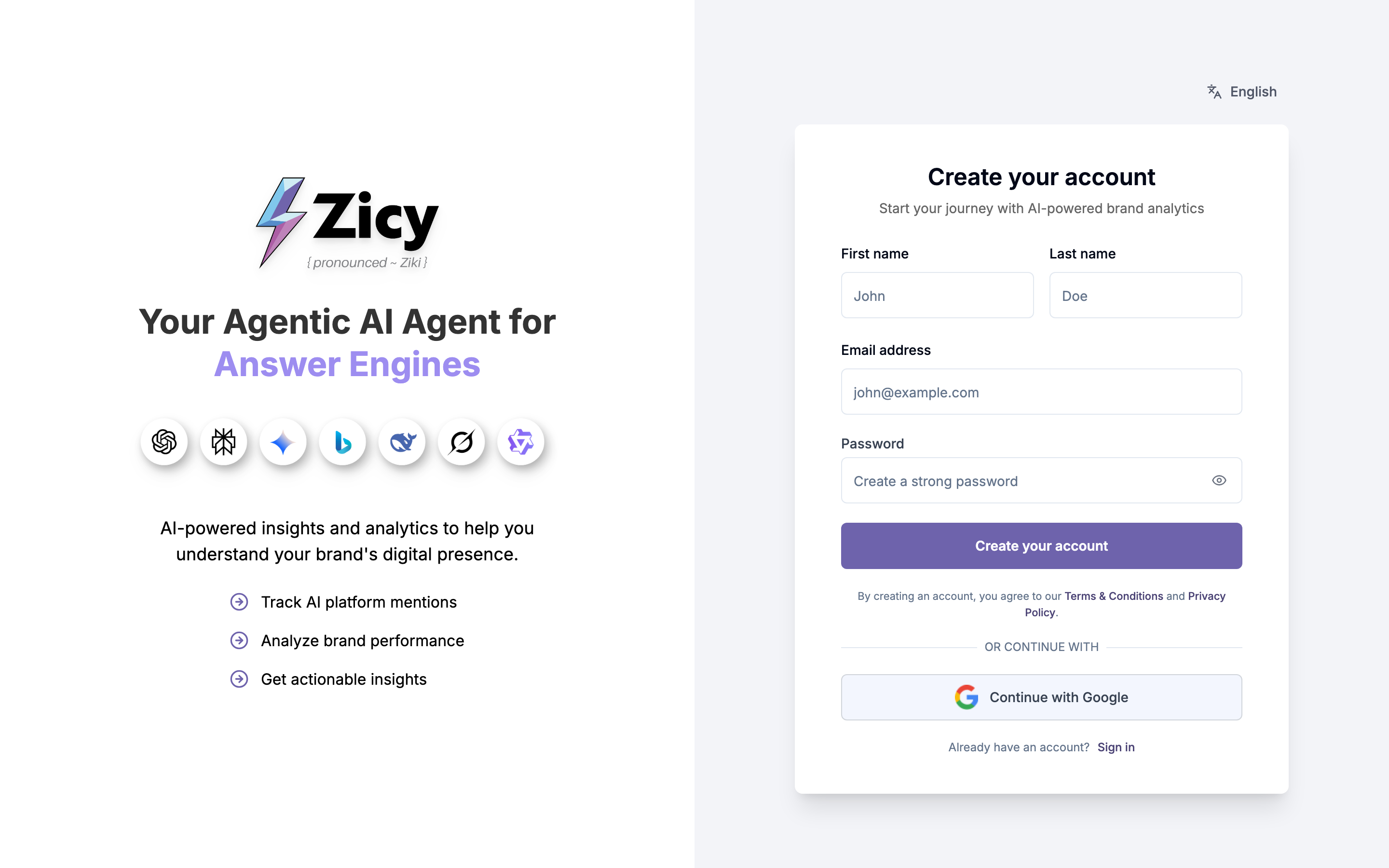
Section titled “Step 1 — Create your account”Go to app.zicy.com/register and sign up with your work email. The free trial lasts about a week and doesn’t ask for a credit card.
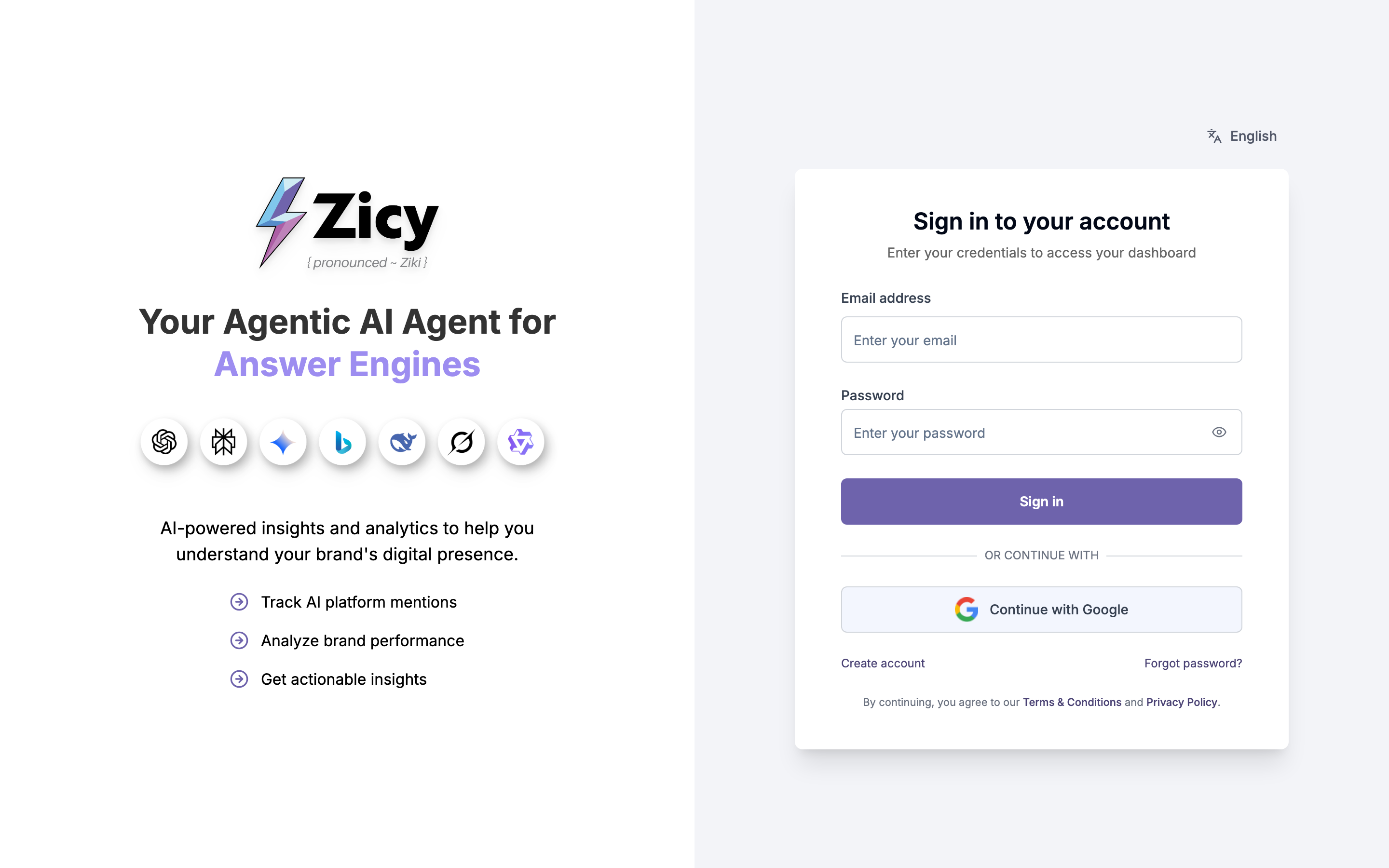
Already have an account? Go to app.zicy.com/login instead and sign in with your email and password (or “Continue with Google”). Forgotten your password? Use the Forgot password? link on that page.
Once you confirm your email, you’ll land inside the app, ready to set up your first brand.
Step 2 — Create your brand profile
Section titled “Step 2 — Create your brand profile”Zicy needs to know who you are before it can check what AI says about you. That’s what a brand profile is: your company’s name, website (Business size only), industry, and goals, all in one place.
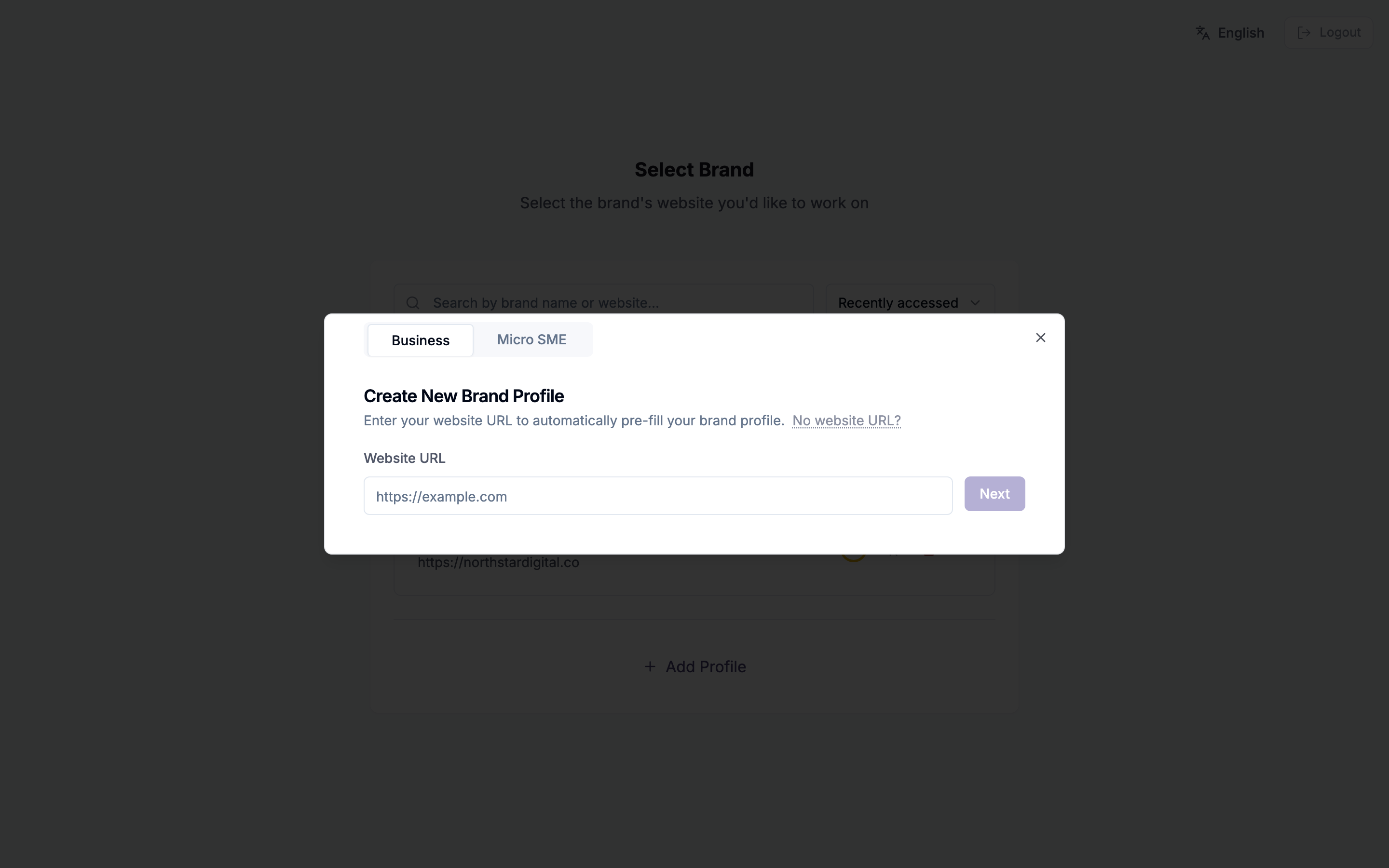
The first screen you land on is headed Let’s get started. It asks whether you’re a Business or a Micro SME, and what happens next depends on your choice.
Pick the size that matches your company, because it decides which modules you get. A Micro SME profile doesn’t include nine Business-only modules: Site Audit, Entity Audit, Internal Linking and Visibility Gaps under Opportunities, and Content Studio, Content Generator, Content Optimizer, Schema Generator and LLMs Generator under Take Action. Everything else in the sidebar is there for both sizes. The Site Audit article covers one of the Business-only modules, if you want to know what you’d be choosing between.
Business: paste your website address and click “Analyze.” If the address you paste redirects somewhere else, Zicy stops and asks you to confirm the destination first, so it never quietly profiles the wrong company.
Micro SME: connect your Google listing. On Micro SME there’s no website box: click Connect Google Business Profile and sign in. Zicy builds your profile from your listing, so you don’t need a website.
A progress card headed Analyzing Your Brand Footprint then walks three steps — checking your details, crawling your pages, building your profile. It usually finishes in under a minute, and there’s nothing to do while it runs. (On the Micro SME route the second step reads Reading your Google listing instead of crawling your pages.)
What comes back is a short review screen headed Is this you? — not a long form. It shows the domain Zicy read, plus four fields: Business name, Category, Main Products/Services and Primary Location. Everything else the crawl filled in sits behind the Review the rest of your profile expander, marked optional: profile name, brand variations, your one-line description, USP, target audience, secondary locations, brand tone, writing style and language.
On the Micro SME route, the line above the heading reads Analyzed: and your business name, with a View on Google Maps link beside it, and a note explains that Zicy filled the form in from your Google Business Profile listing, so you should add your products or services, target audience, and anything else that’s still empty.
Correct anything that’s wrong before you carry on. The auto-fill is a head start, not a final answer, and two things are worth a second look:
- Primary Location — the market your customers are in. If it’s blank or wrong, your tracked questions get asked about the wrong country.
- Brand Variations, inside the optional expander — every way your name gets written (with spaces, without, your domain). More variations means fewer missed mentions.
When it looks right, click Looks right — continue. That single button does two things: it creates the brand profile and starts your first analysis, then takes you straight into the app. Your new brand also appears in your brand list, which shows a small status signal next to each brand so you can see at a glance whether its setup is complete or still needs attention.
Step 3 — Set up your tracked prompts (the questions AI gets asked)
Section titled “Step 3 — Set up your tracked prompts (the questions AI gets asked)”A tracked prompt is a question Zicy asks the AI platforms on your behalf — the kind of question a real buyer would type, like “best AI menu software for restaurants.” Zicy then records whether the answer mentions you, where you rank, and who gets recommended instead. It re-asks these questions daily so your results build into a trend over time.
The fastest start: open Prompt Manager and use the smart prompt generator. It reads your brand profile and writes about 10 buyer-style questions for you.
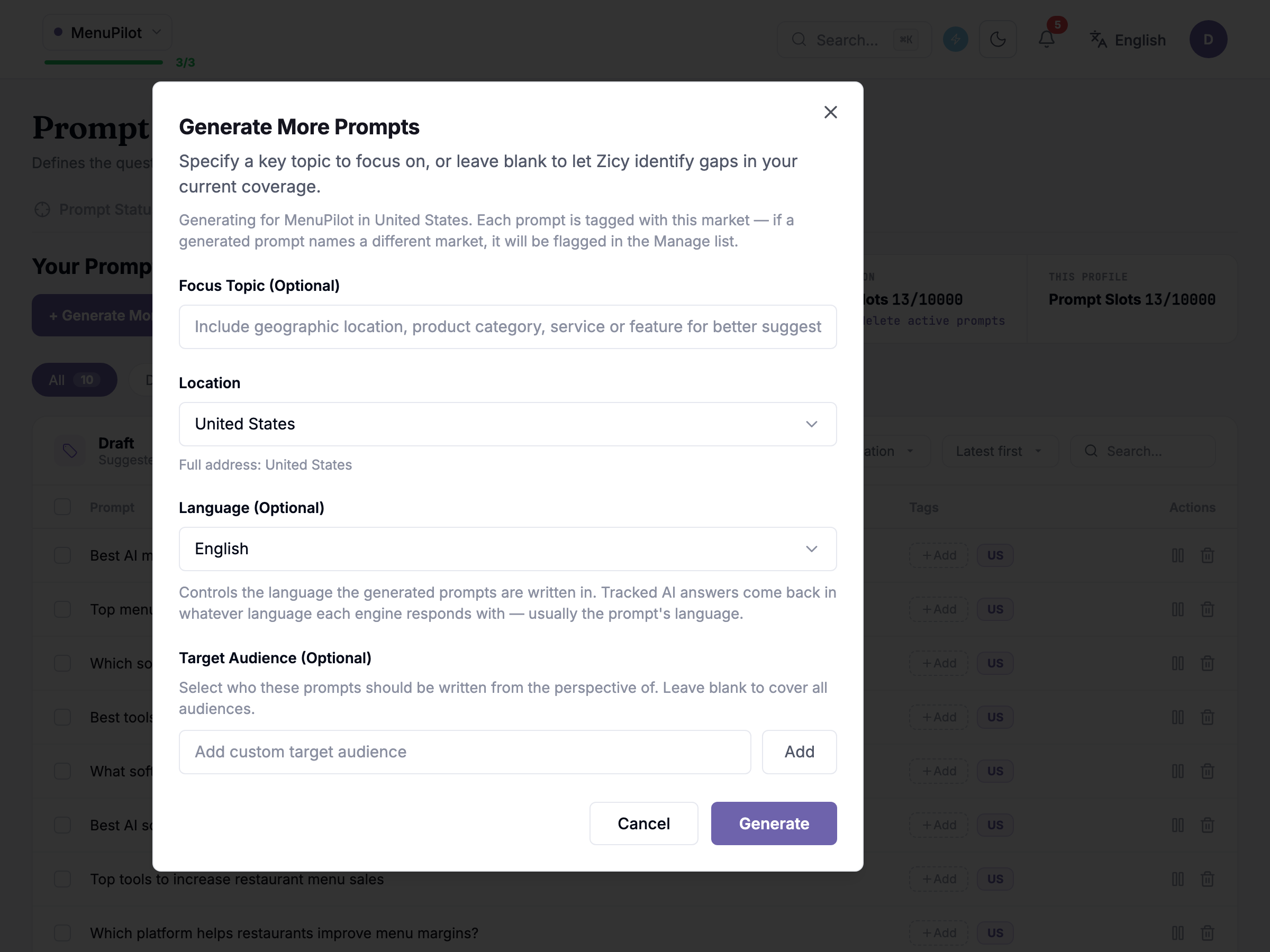
Two things to know before you activate:
- Good prompts never contain your own brand name. If the question already says “MenuPilot,” of course the answer will mention MenuPilot — that tells you nothing. Zicy measures whether AI recommends you unprompted. (More on writing great prompts in our guide: How to write tracked prompts that actually work.)
- Activating uses quota. You’ll see a confirmation like “Track 10 Prompts? Tracking these uses 50 analyses — 5 per prompt, 1 per engine.” Zicy shows you the exact cost before you commit; your trial includes plenty for a full setup — click confirm.
Your prompts are reviewed and explicitly confirmed before they go active, so nothing starts tracking until you’ve said go.
Step 4 — Wait for your first results (this is normal!)
Section titled “Step 4 — Wait for your first results (this is normal!)”Right after setup your dashboard is a screen of zeros: Brand Mention Coverage, Web Citation Rate, AI Share of Voice and Average AI Ranking all sit at their empty baseline, because nothing has come back yet.
You aren’t left staring at them. The chat panel opens on a first-run board listing the jobs Zicy started for you — site audit, brand intelligence, entity audit and prompt visibility — each with its own state, so you can watch progress instead of guessing at it. When those finish, Zicy offers to summarise what they found and points you at your next step. The populated version of the dashboard itself is in Step 5 below.
Nothing is broken. Zicy runs your questions across five AI platforms — ChatGPT, Gemini, Perplexity, Google AI Mode, and Google AI Overviews — and that first full pass usually takes about 30 minutes. Tracking then repeats daily, so each run adds a new data point to your trends.
You can close the tab and come back. There’s nothing you need to do while you wait.
Step 5 — Read your first dashboard
Section titled “Step 5 — Read your first dashboard”Within about 30 minutes, your dashboard — the screen titled AI Visibility Report — fills in with your first real numbers.
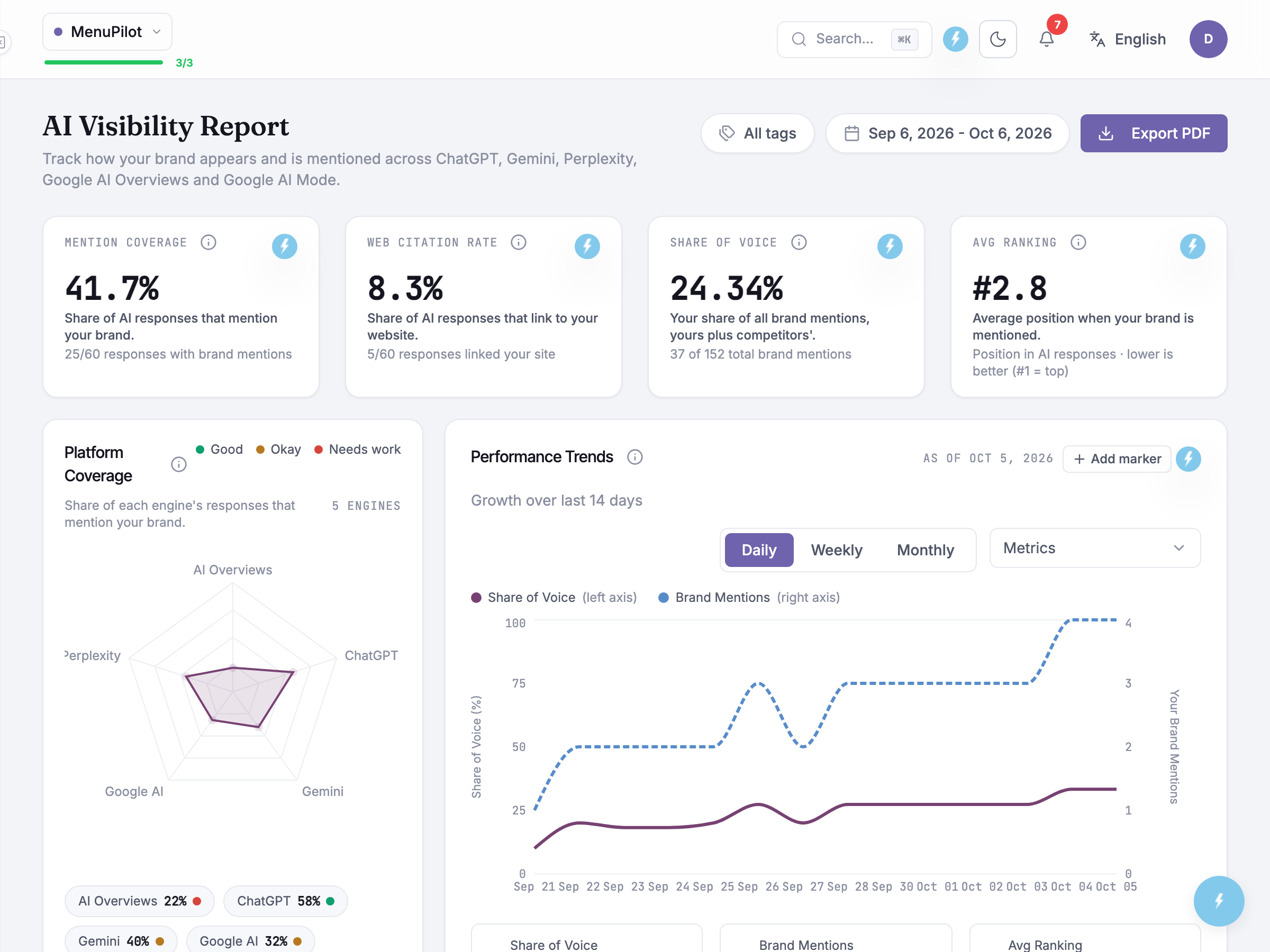
The four big numbers, in plain English:
- Brand Mention Coverage — out of all the AI answers to your questions, what percentage mentioned you at all. Sarah’s 41.7% means she was named in roughly 4 out of every 10 answers.
- Web Citation Rate — how often the answer actually linked to your website. This is usually much lower than mention coverage — being named and being linked are different wins.
- AI Share of Voice — of all brand mentions across all answers, what share were yours. Sarah’s 24.3% means about a quarter of the conversation is about MenuPilot.
- Average AI Ranking — when you appear in a list of recommendations, your average position. Lower is better: #2.8 means Sarah usually shows up second or third.
Each number carries a short definition underneath it and a benchmark chip (Good, Okay, or Needs work) so you know at a glance whether it’s healthy. The radar chart shows which of the five AI platforms mention you most — it’s normal to be strong on one and weak on another. The sentiment dial gives a quick read on whether AI talks about you positively.
The Performance Trends panel on this dashboard has a Daily / Weekly / Monthly toggle, so you can watch your numbers at whichever grain suits you — tracking itself now runs daily, and the Weekly/Monthly views just roll those days up. You can also add event markers to the trend line (Zicy adds some automatically, like “Prompts added”) to line up changes in your results with things you did.
What to do next
Section titled “What to do next”- Your numbers only mean something over time — check back regularly and watch the trend, not any single reading.
- Learn to write sharper questions: How to write tracked prompts that actually work (GS-02).
- Confused by a term? Everything is defined in the Plain-English Glossary (GS-03).
- Stuck on what a number means? Click the lightning icon on any panel to use Ask Zicy.
- Need to send results to someone? Export a client report as a PDF, and add teammates when you are ready to share the workspace.
- Ready to dig into a specific screen? Every module has its own reference article in the Module Reference section.